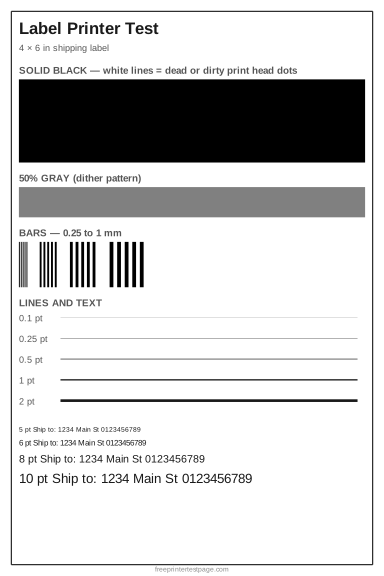
A thermal print head is a row of tiny heating dots. When one of them fails or gets dirty, every label gets a thin white line running down it — easy to miss in text, and enough to make a barcode unreadable. The solid black block on this label shows it immediately.
How to print it
- Pick the paper or label size above, and add the printer name and date if you want to keep the printout.
- Click Print test page (or Download PDF and open it).
- In the print dialog, choose your printer and set the scale to 100% or Actual size.Set the paper size to your label size.
How to read the printout
- Border
- Should sit evenly inside the label. If it is cut off or shifted, set the label size in the printer driver to match the labels and run the printer’s label calibration.
- Solid black
- Must be completely black. A thin white line running in the feed direction is a dead or dirty dot on the print head.
- Bars
- All four groups should print as separate bars. If the thinnest bars merge or vanish, adjust the darkness or speed setting.
- Lines and text
- Thin lines should be continuous and 5–6 pt text readable — that is the size of the small print on most shipping labels.
Something wrong on your print?
Tap the problem you see for the usual causes and what to try.
Labels come out blank or very faint
Usual causes: The label roll is loaded upside down, the labels are not direct thermal, or the darkness setting is too low.
- Scratch a label with a fingernail: the side that turns dark must face the print head.
- Check that the labels are direct thermal (not thermal transfer, which needs a ribbon).
- Raise the darkness (or lower the speed) in the printer settings.
Labels print off-center or across two labels
Usual causes: The printer has lost track of the gaps between labels, or the label size in the driver does not match the roll.
- Run the printer’s label calibration (on many models: hold the feed button until it feeds a few labels).
- Set the label size in the driver and in the app to the exact size of your labels.
- Turn off scaling in the print dialog and print at 100%.
White lines or streaks across the page
Usual causes: On inkjets: clogged nozzles. On laser printers: low toner or a dirty or scratched drum. On thermal label printers: a dirty or dead print head dot.
- Inkjet: run the nozzle check and one head cleaning, then print the test page again.
- Laser: remove the toner cartridge and rock it gently side to side to spread the toner; clean the corona wire if your drum has one.
- Thermal: clean the print head with isopropyl alcohol and let it dry.
- If lines appear in exactly the same place after cleaning, a part (print head or drum) may need replacing.
Faded or light print
Usual causes: Draft or toner-save mode, low ink or toner, the wrong paper type setting, or partly clogged nozzles.
- In the print dialog, set quality to Normal or Best and turn off draft, economy or toner-save mode.
- Make sure the paper type in the dialog matches the paper in the tray.
- Check ink or toner levels, then run a nozzle check.
More test pages
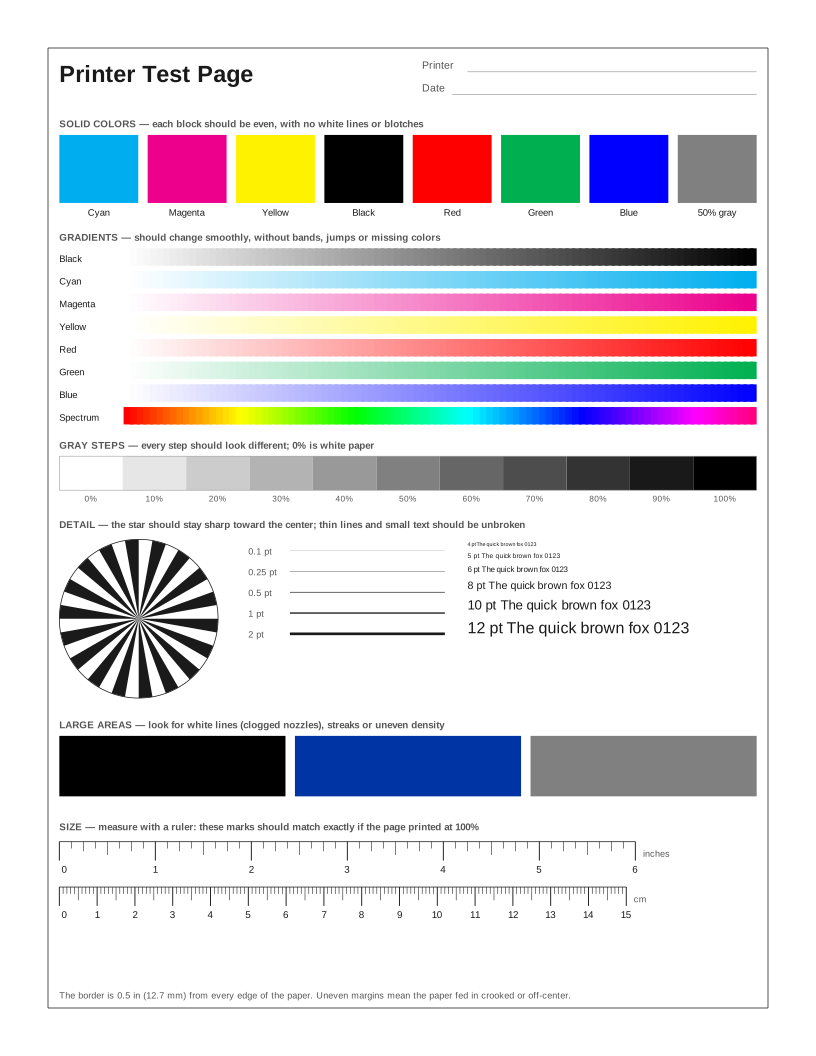 Printer Test Page
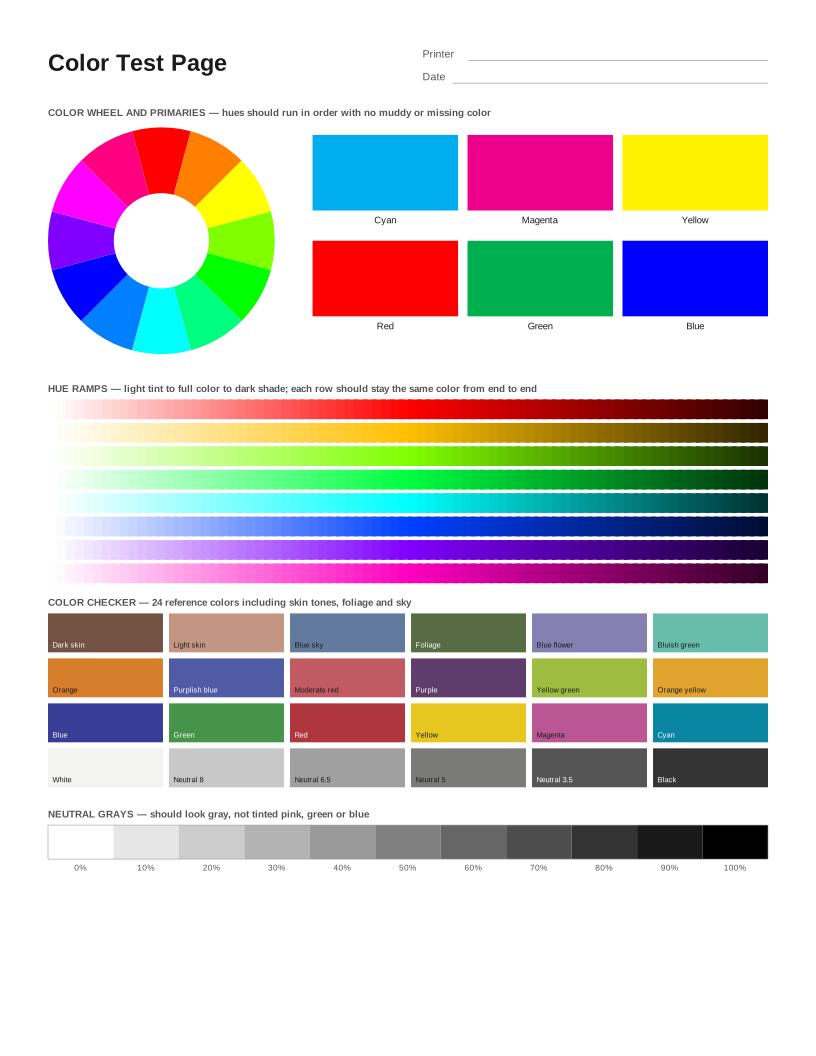 Color Printer Test Page
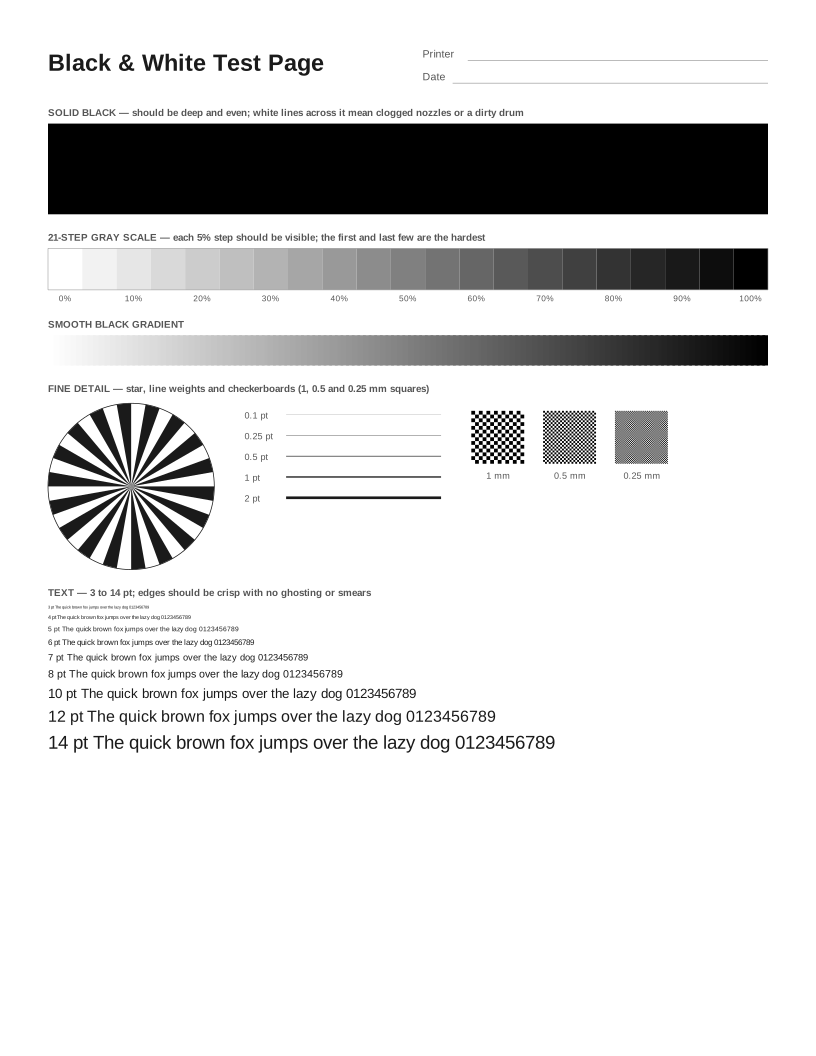 Black and White Test Page
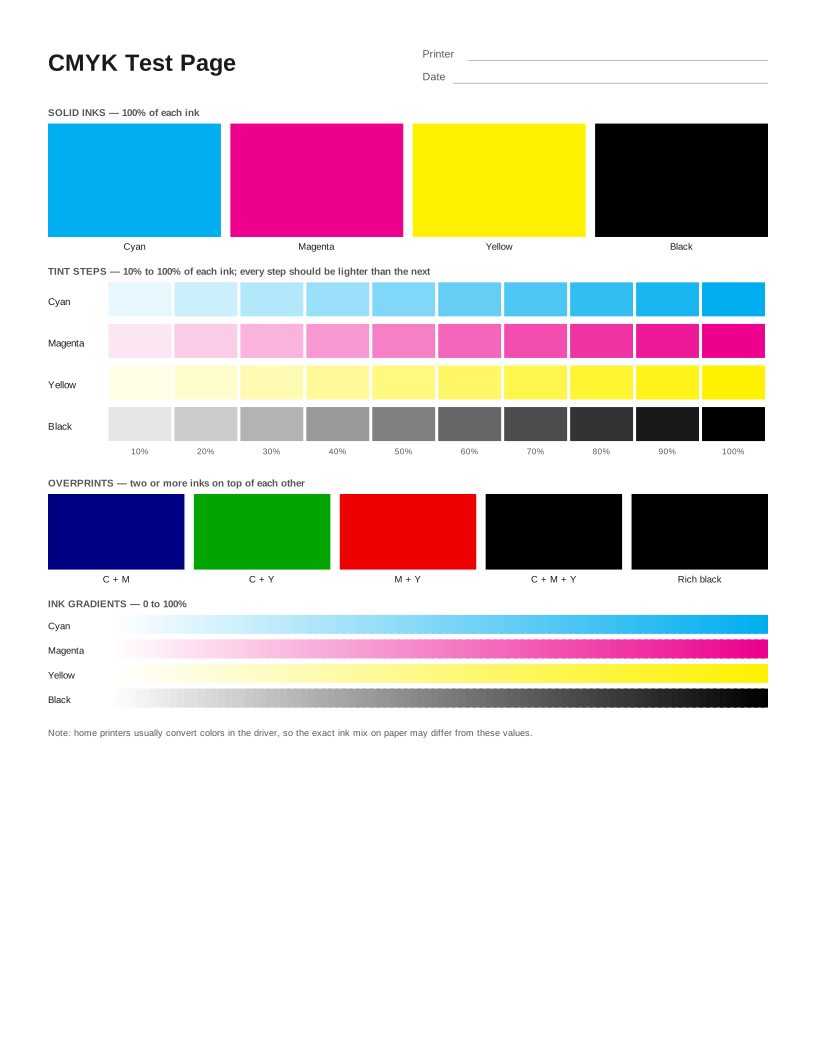 CMYK Test Page
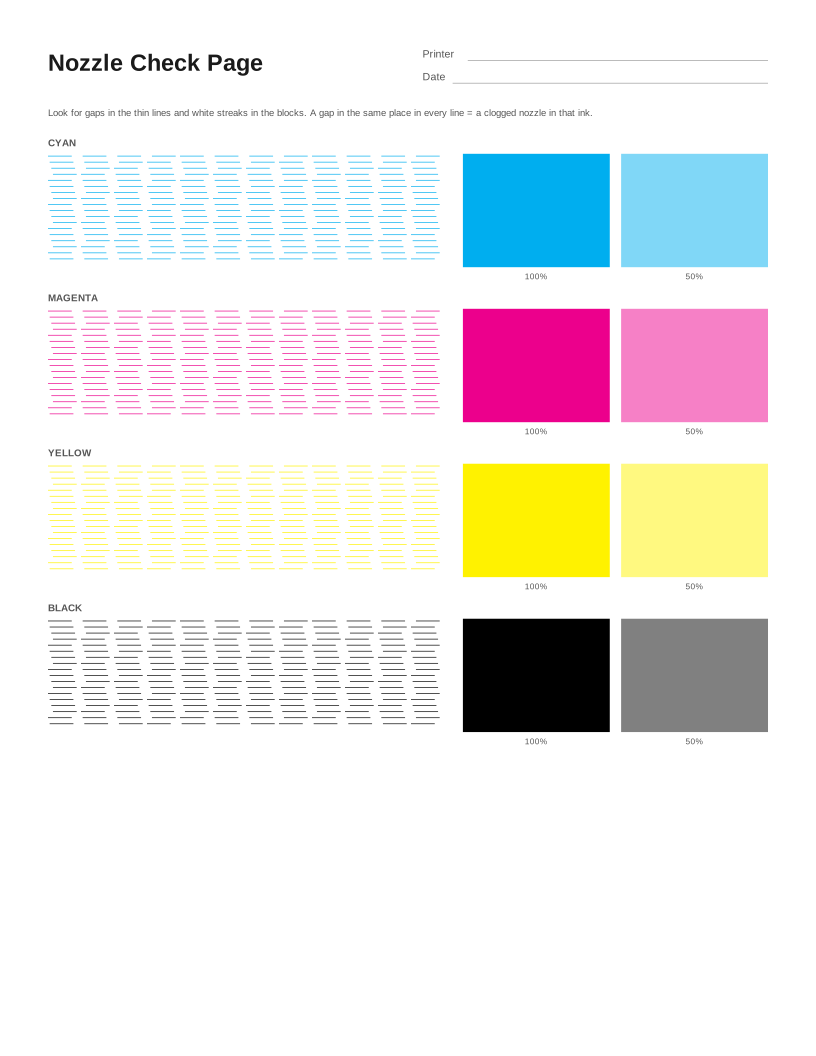 Nozzle Check Page
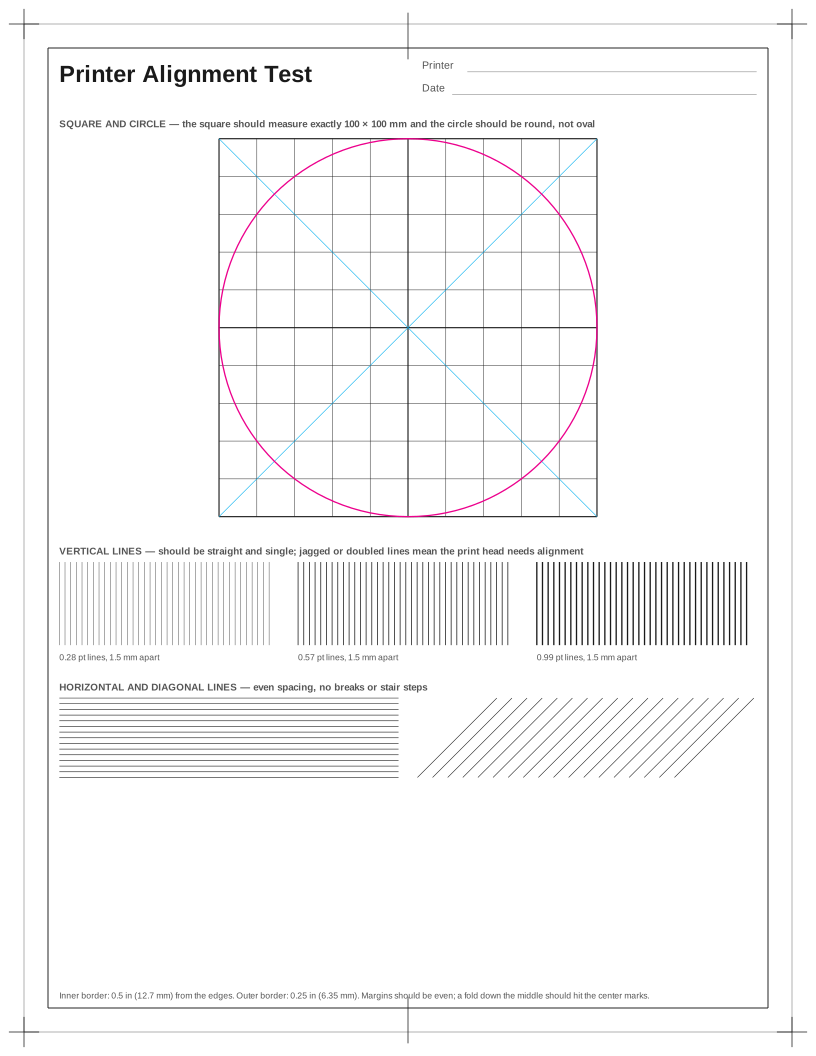 Printer Alignment Test Page
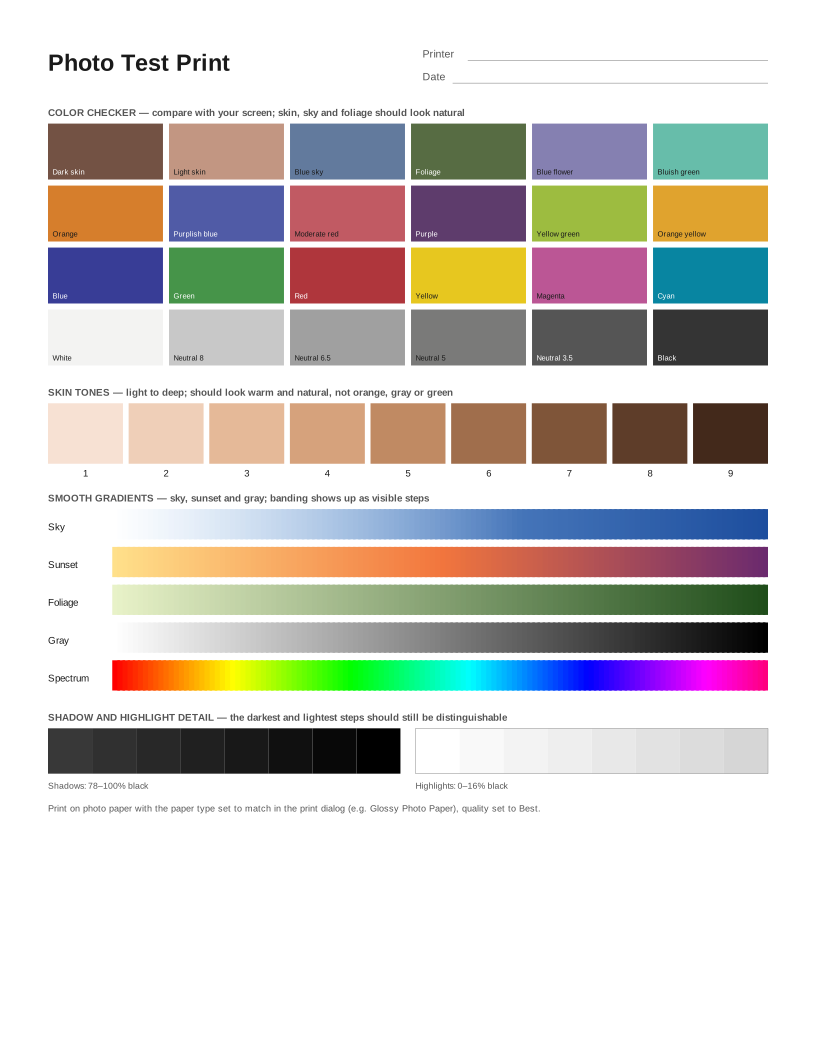 Photo Test Print
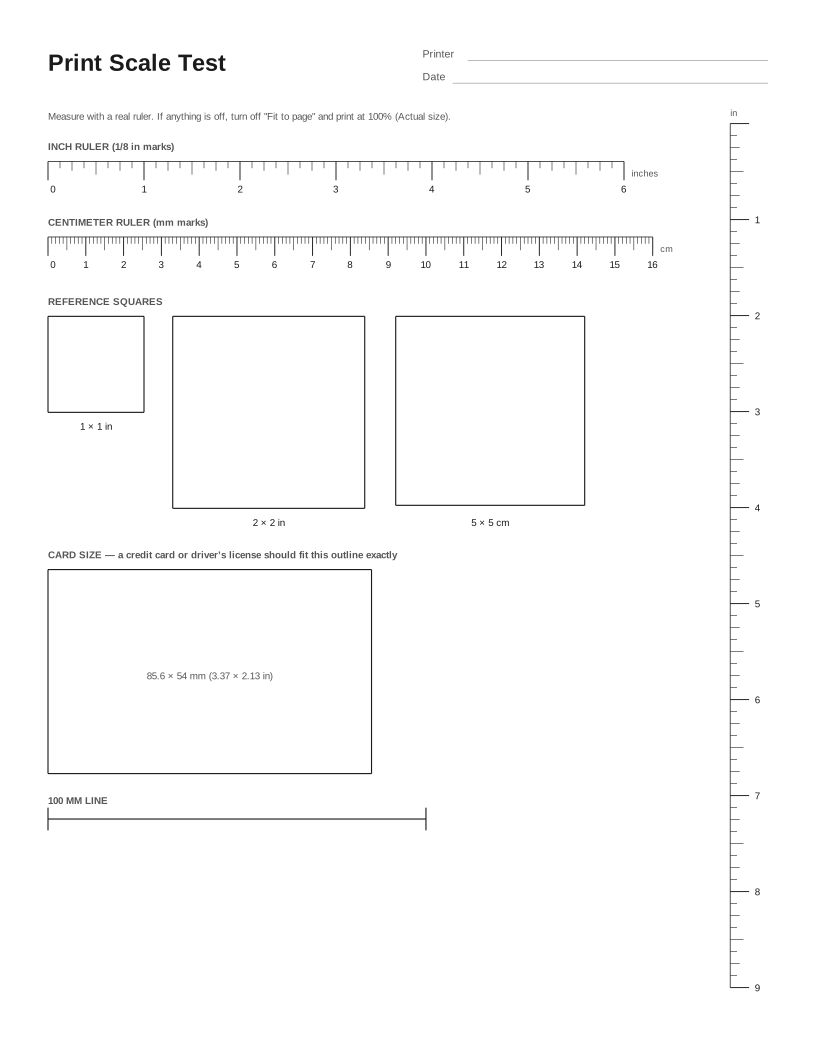 Print Scale Test (Actual Size Check)
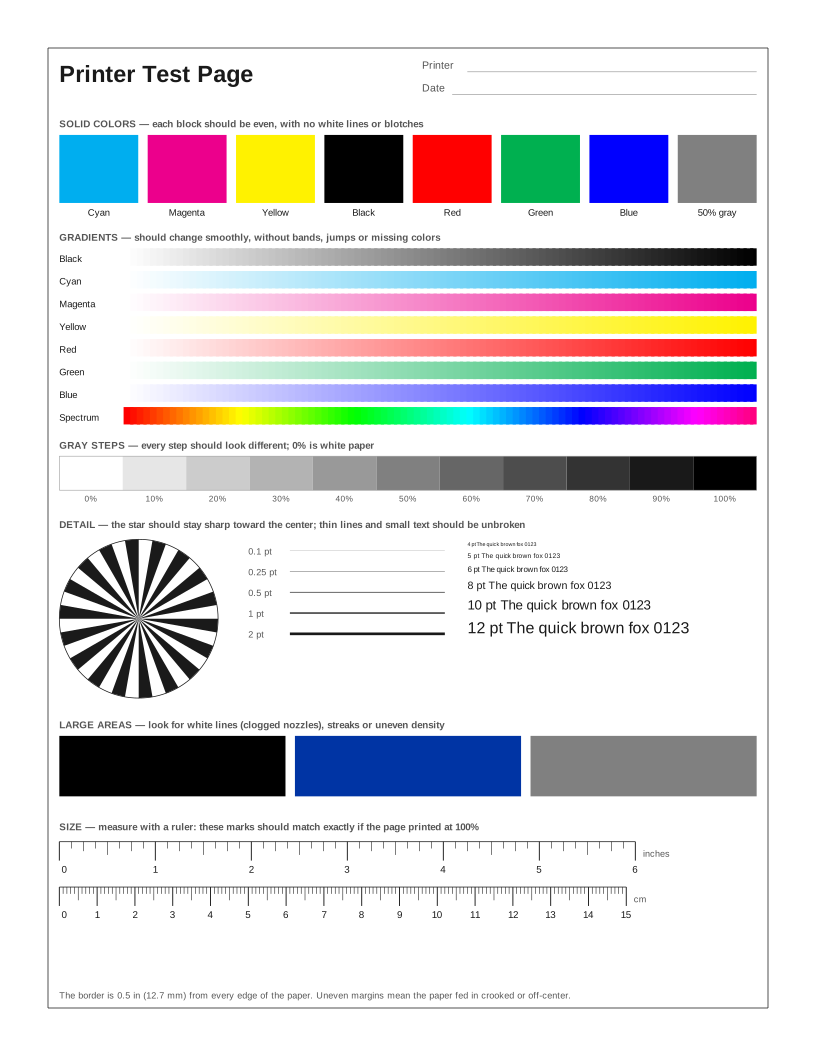 HP Printer Test Page
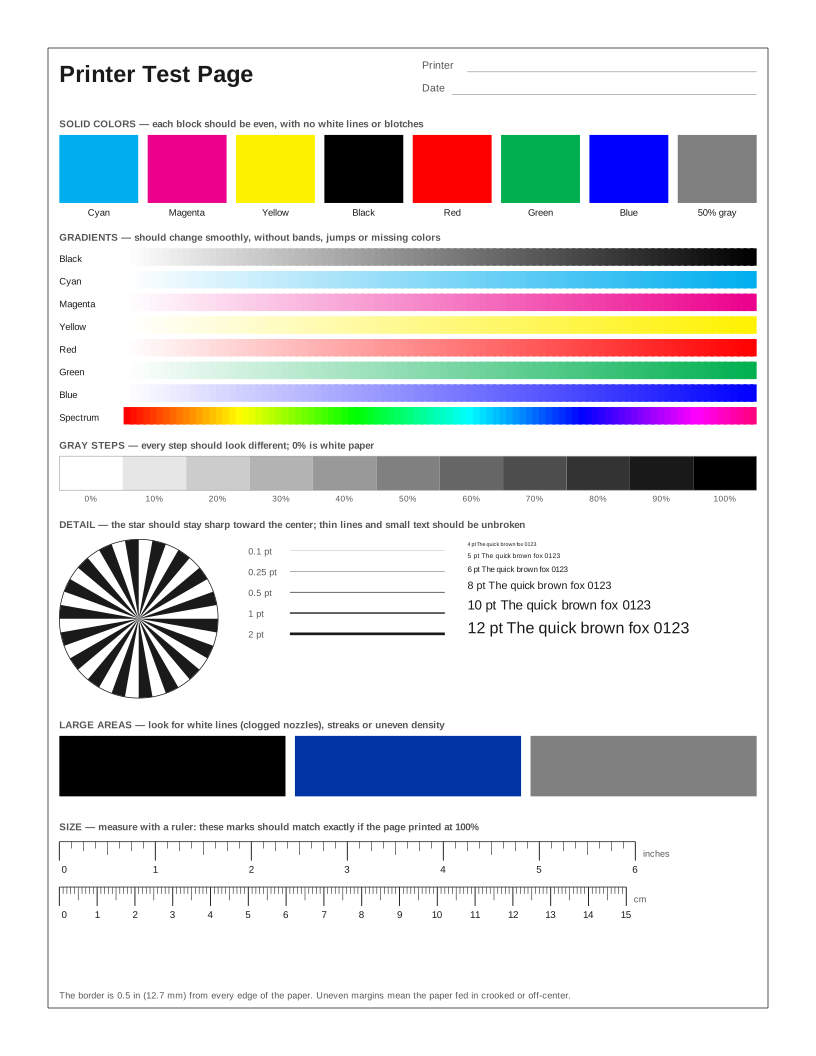 Epson Printer Test Page
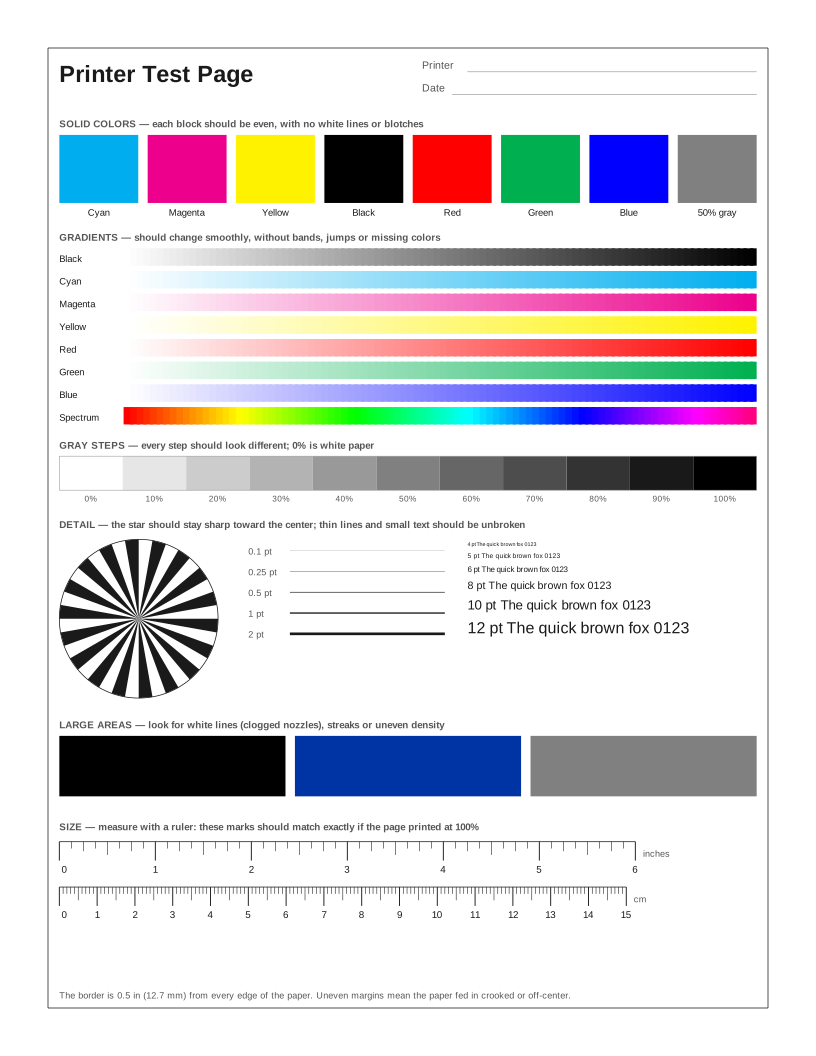 Canon Printer Test Page
 Brother Printer Test Page
 Weekly Inkjet Maintenance Page
Frequently asked questions
Why is my thermal label printer printing blank labels?
Direct thermal labels only have heat-sensitive coating on one side. If the roll is loaded the wrong way round, labels come out blank. Scratch a label with a fingernail: the side that turns dark should face the print head.
How do I fix a white line down every label?
Clean the print head with an isopropyl alcohol pen or a cotton swab with alcohol, let it dry and print the test again. If the line stays in exactly the same place, that heating dot has failed and the print head needs replacing.
My labels print across two labels. What is wrong?
The printer has lost track of the gaps between labels. Run the printer’s auto-calibration (on many models: hold the feed button until it feeds a few labels) and check that the label size in the driver matches the roll.