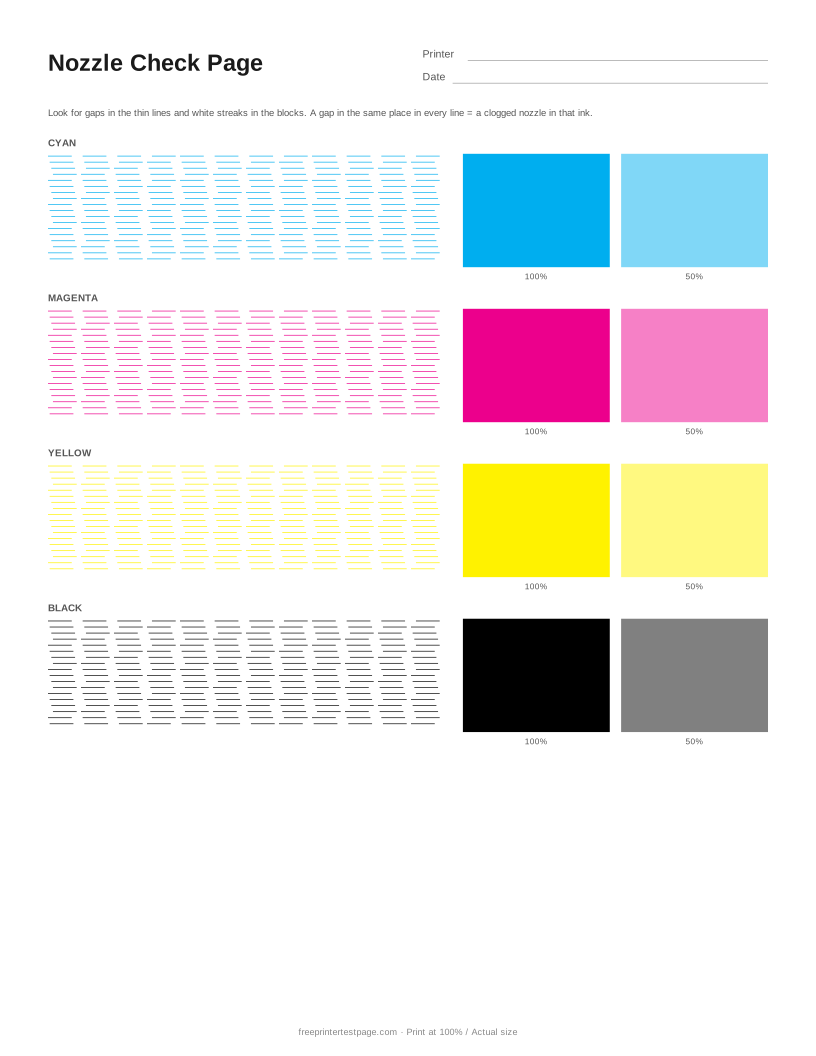
Your printer’s own nozzle check maps each nozzle to its own line and is the most precise test — use it if you can find it. This page is the quick alternative when the menu is hard to find, and it also shows how the problem looks on a normal print. Choose 6-color for photo printers with light cyan and light magenta inks.
How to print it
- Pick the paper size above, and add the printer name and date if you want to keep the printout.
- Click Print test page (or Download PDF and open it).
- In the print dialog, choose your printer and set the scale to 100% or Actual size.Use plain paper unless you are testing photo paper.
How to read the printout
- Thin-line pattern
- Lines should be unbroken. A gap that repeats in the same place on every line of one color is a clogged nozzle in that ink.
- Solid block
- Should be completely even. White horizontal lines across it are the clearest sign of clogged nozzles.
- 50% block
- Shows faint banding and uneven ink flow that a solid block can hide.
- Compare inks
- If only one ink has gaps, clean only that cartridge (if your printer allows it) to save ink.
Something wrong on your print?
Tap the problem you see for the usual causes and what to try.
White lines or streaks across the page
Usual causes: On inkjets: clogged nozzles. On laser printers: low toner or a dirty or scratched drum. On thermal label printers: a dirty or dead print head dot.
- Inkjet: run the nozzle check and one head cleaning, then print the test page again.
- Laser: remove the toner cartridge and rock it gently side to side to spread the toner; clean the corona wire if your drum has one.
- Thermal: clean the print head with isopropyl alcohol and let it dry.
- If lines appear in exactly the same place after cleaning, a part (print head or drum) may need replacing.
A color is missing or looks wrong
Usual causes: Empty or dried cartridge, clogged nozzles, protective tape on a new cartridge, or a cartridge or ink bottle in the wrong slot.
- Check ink levels and make sure all protective tape is removed from new cartridges.
- Print the Nozzle Check page (or the printer’s built-in nozzle check) to see which ink is affected.
- Run one head cleaning, then check again. Do not run more than two or three in a row.
- If one color is replaced by another, check that each cartridge or ink bottle is in the right slot.
Faded or light print
Usual causes: Draft or toner-save mode, low ink or toner, the wrong paper type setting, or partly clogged nozzles.
- In the print dialog, set quality to Normal or Best and turn off draft, economy or toner-save mode.
- Make sure the paper type in the dialog matches the paper in the tray.
- Check ink or toner levels, then run a nozzle check.
More test pages
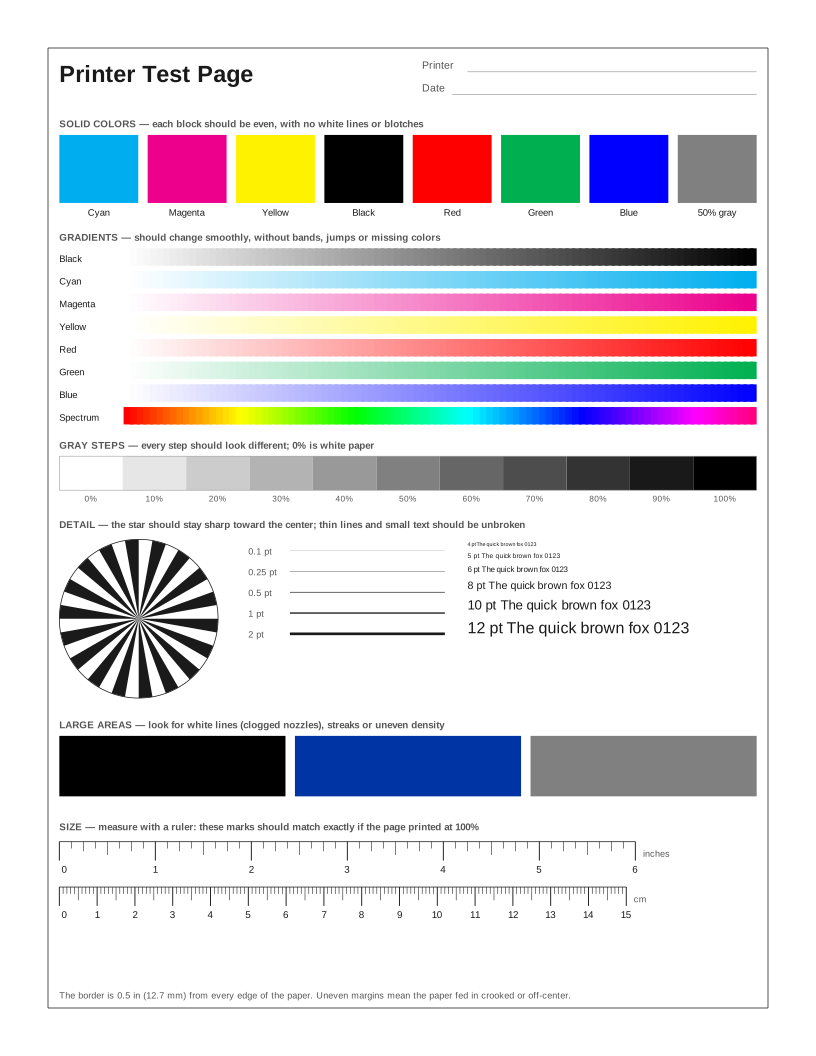 Printer Test Page
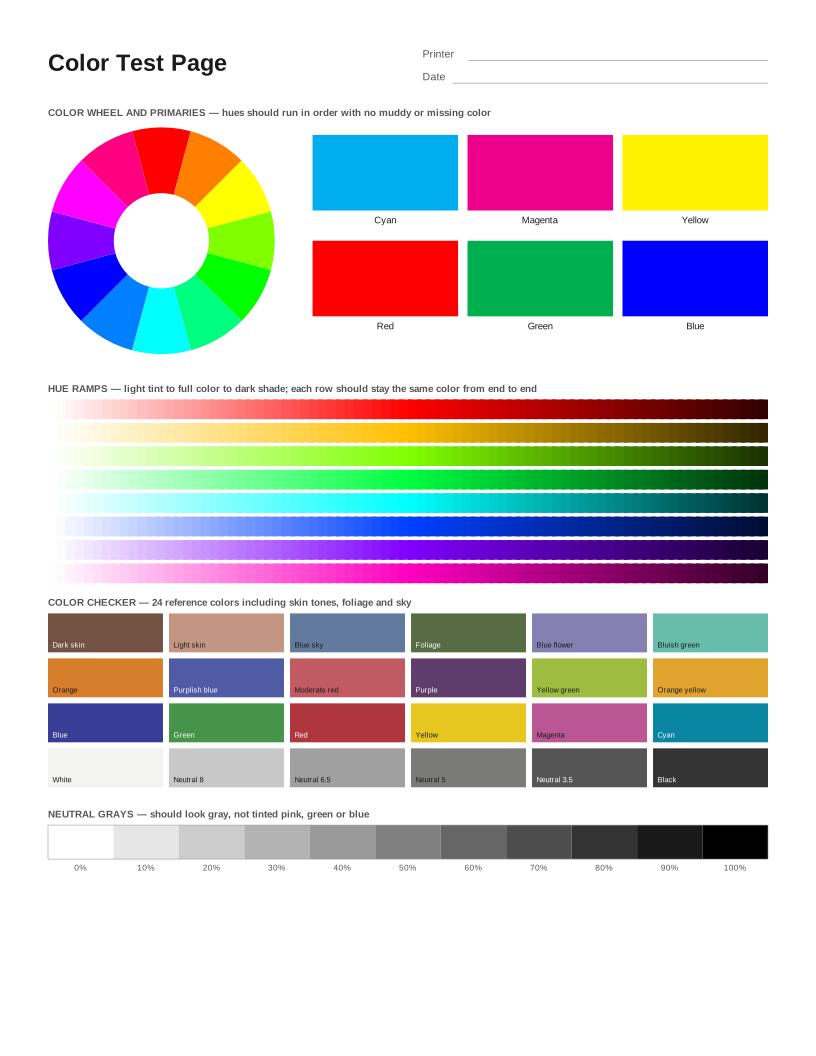 Color Printer Test Page
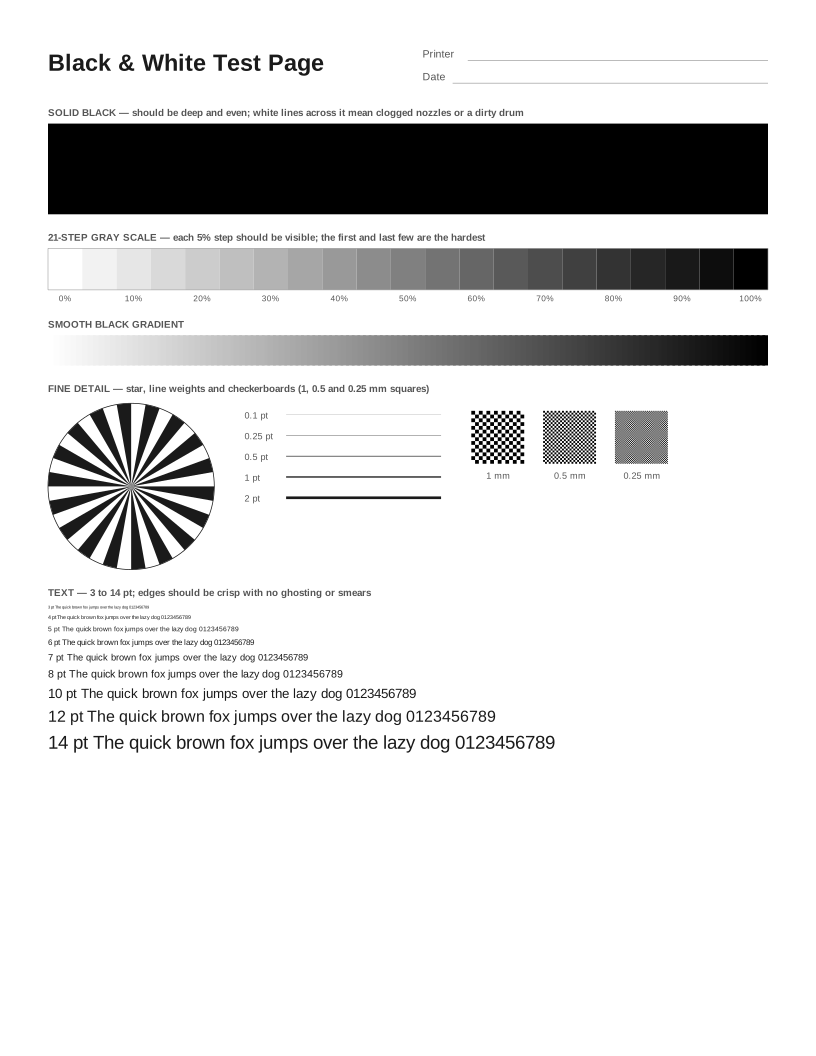 Black and White Test Page
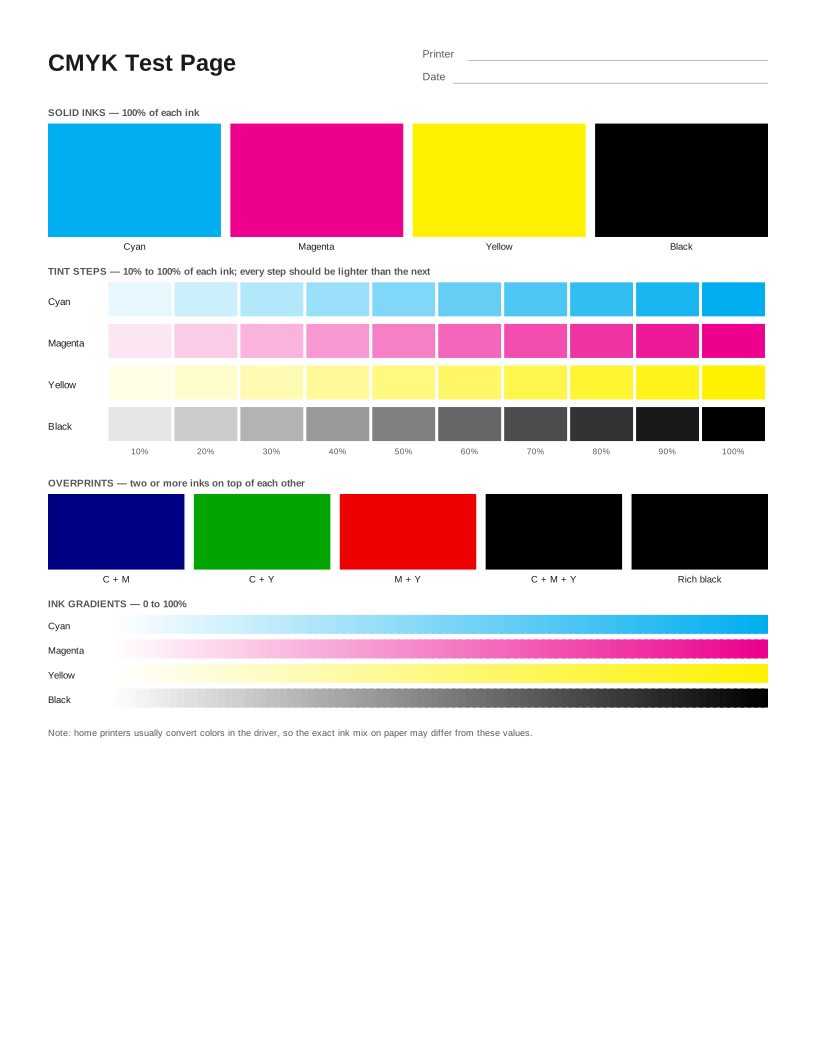 CMYK Test Page
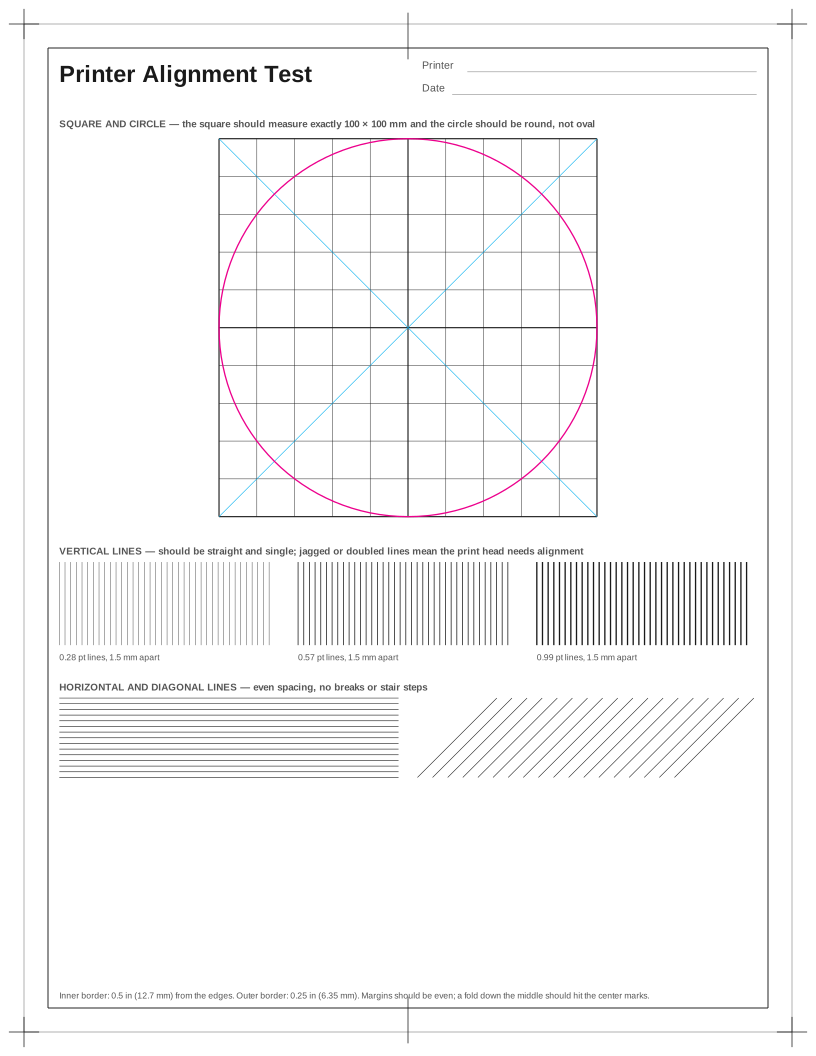 Printer Alignment Test Page
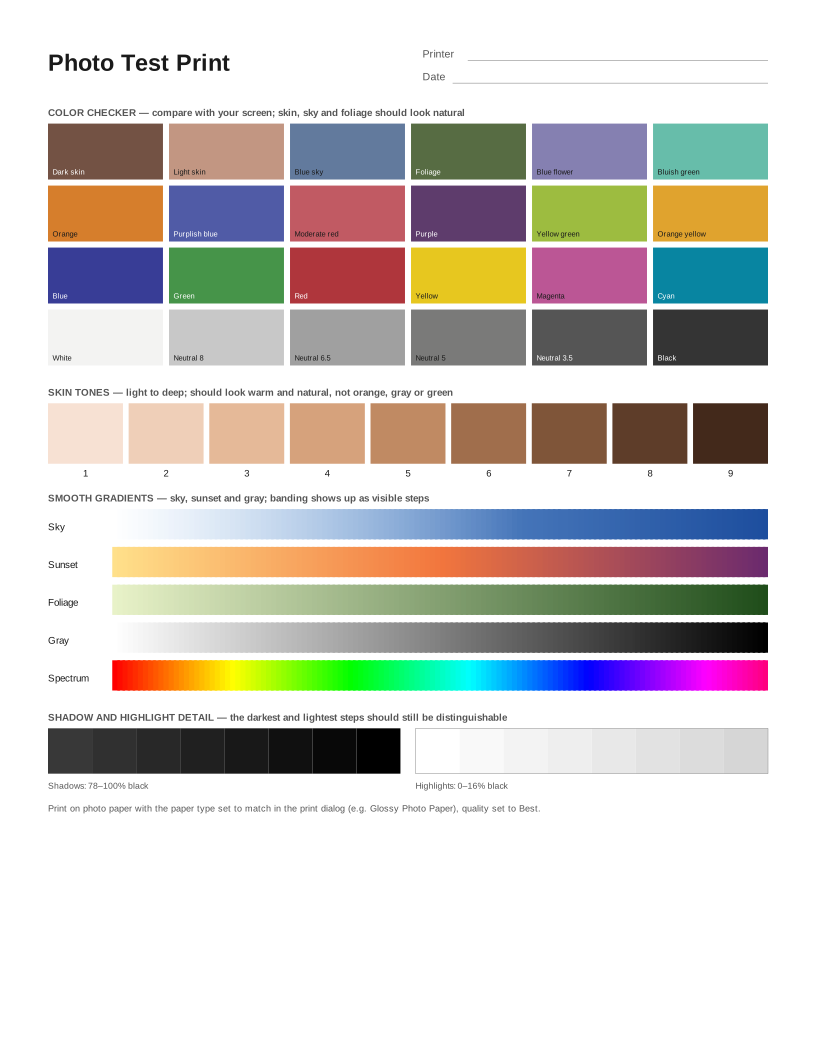 Photo Test Print
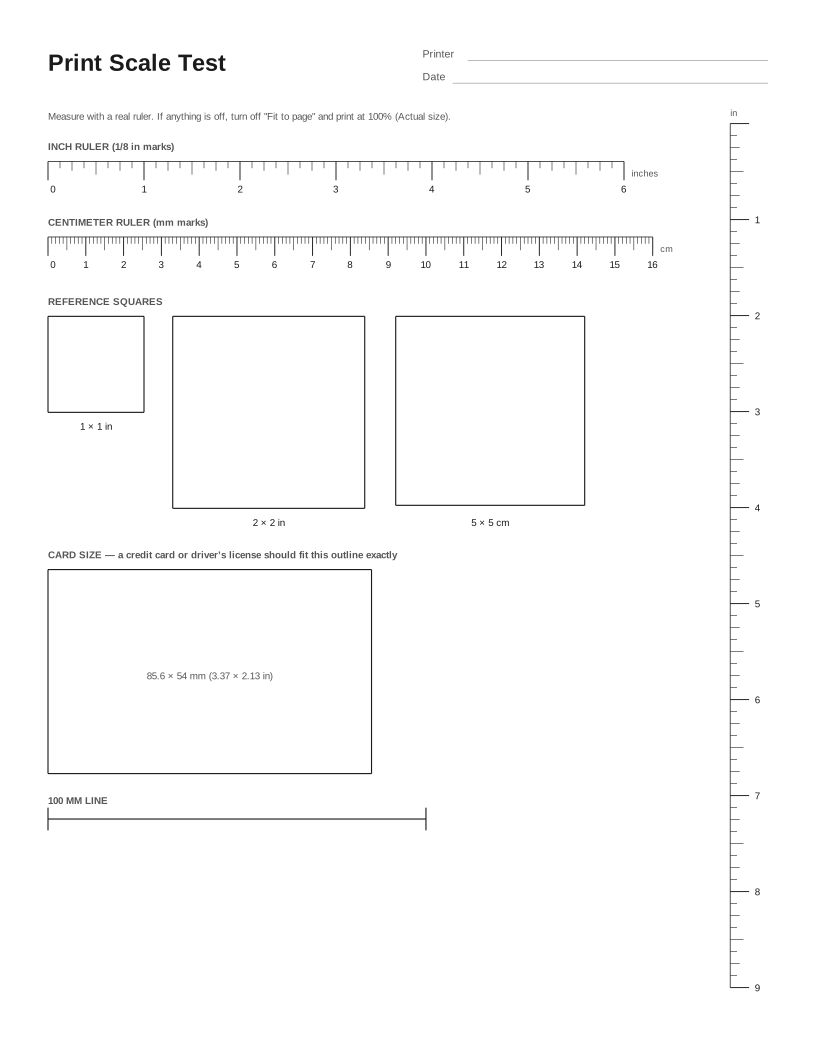 Print Scale Test (Actual Size Check)
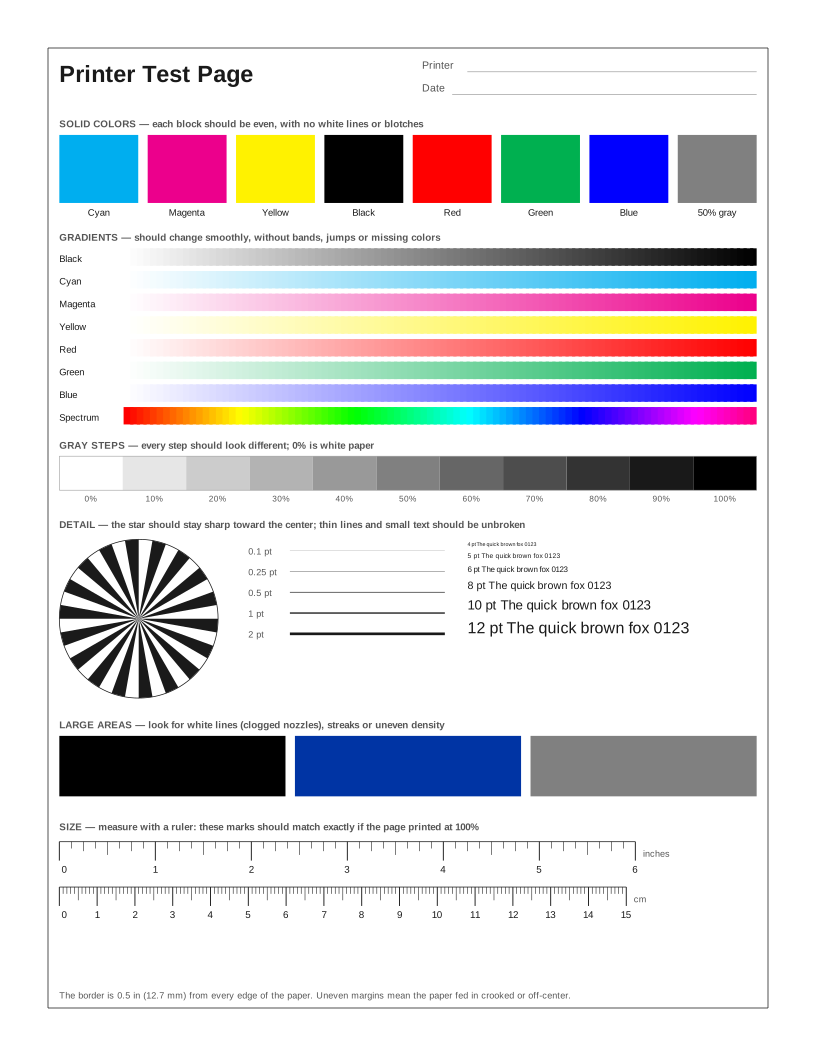 HP Printer Test Page
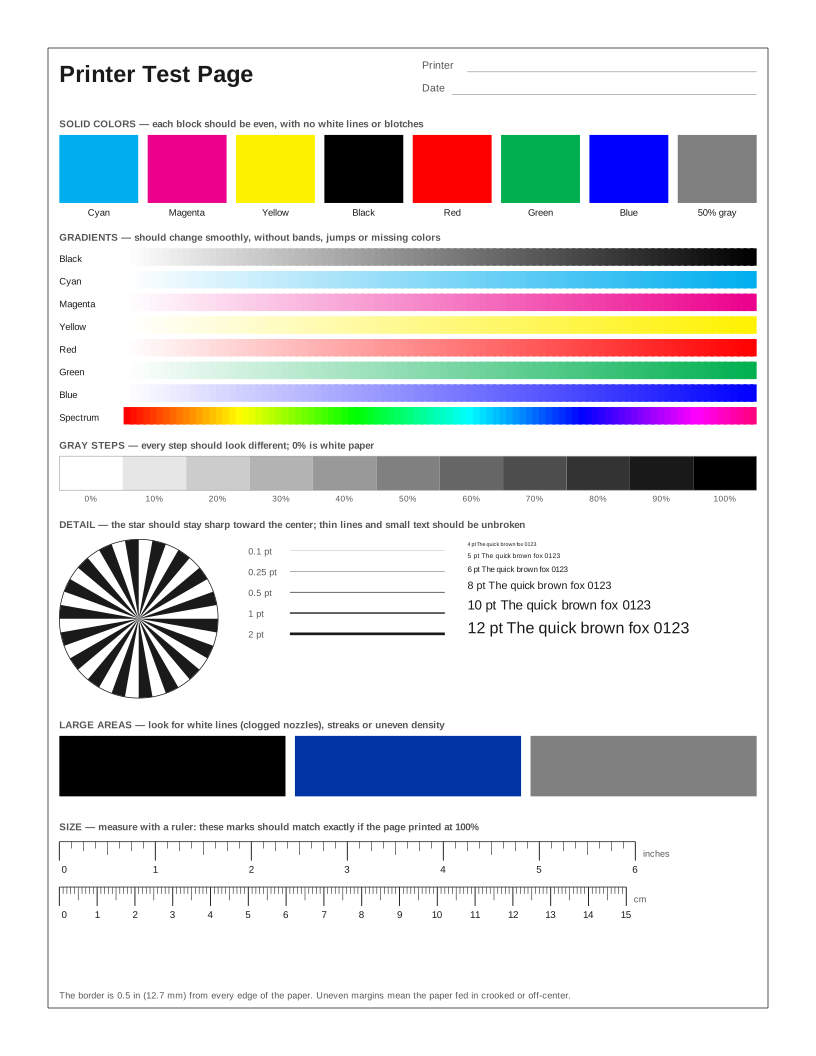 Epson Printer Test Page
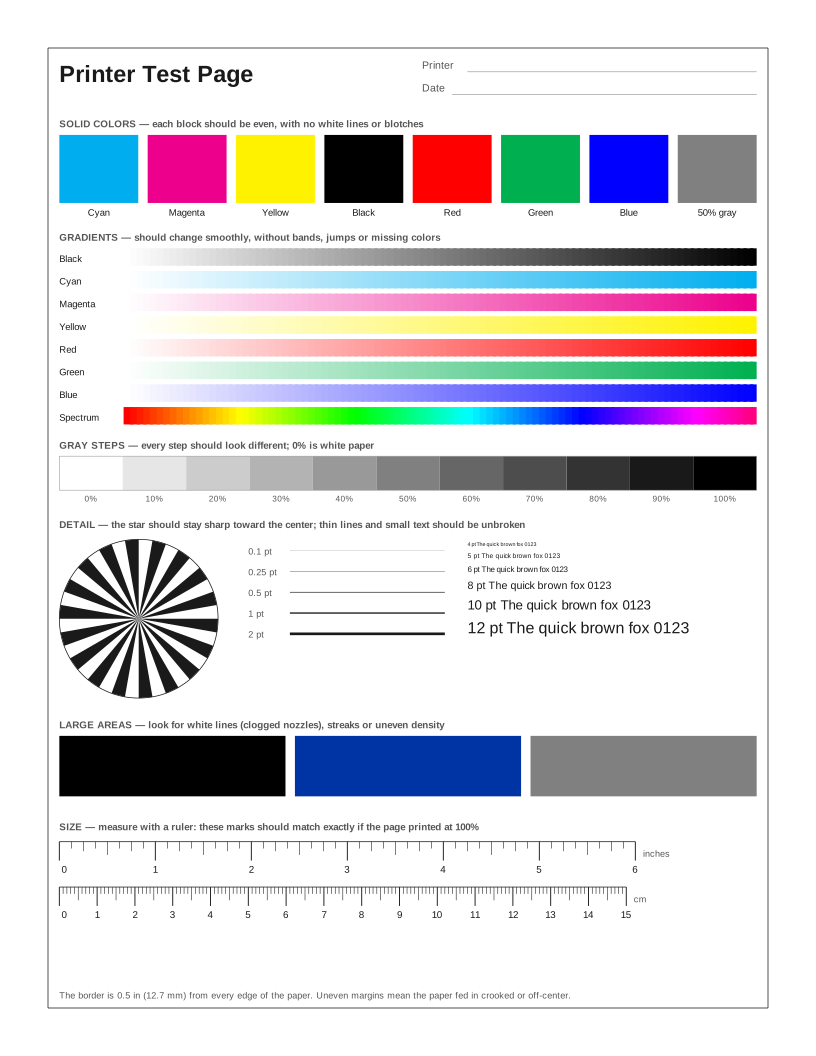 Canon Printer Test Page
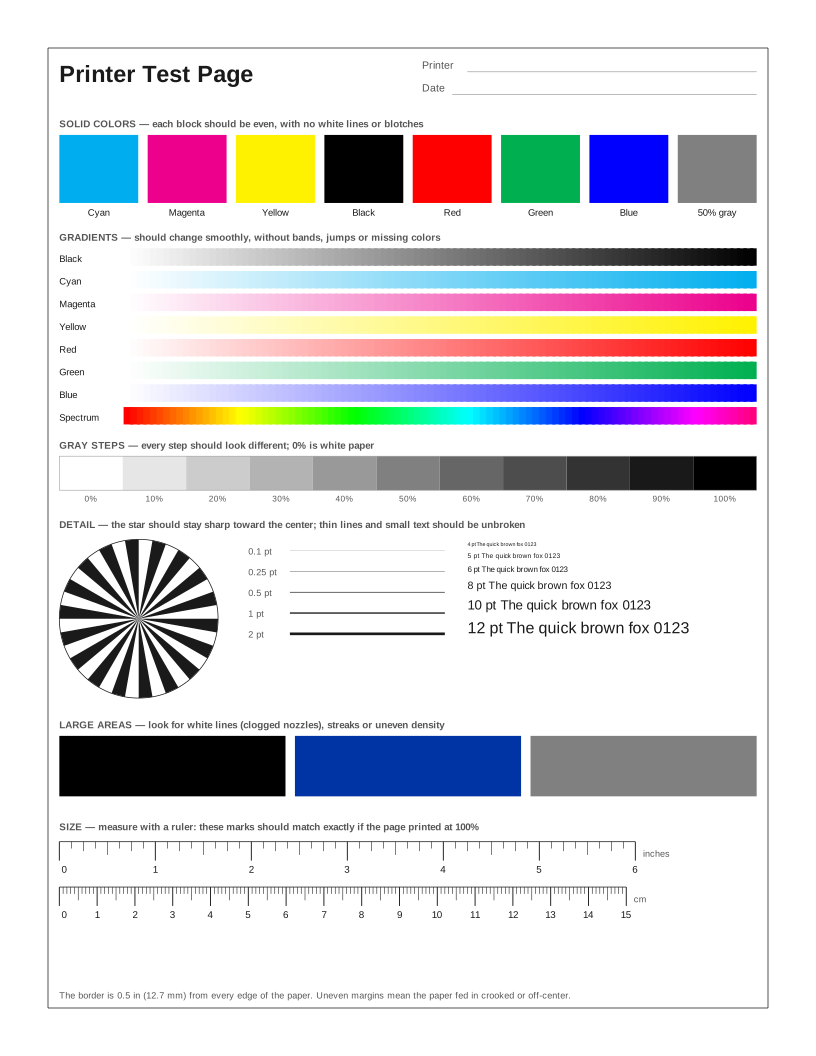 Brother Printer Test Page
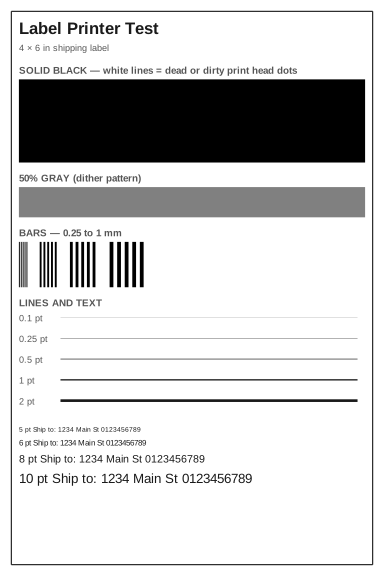 Label Printer Test Page
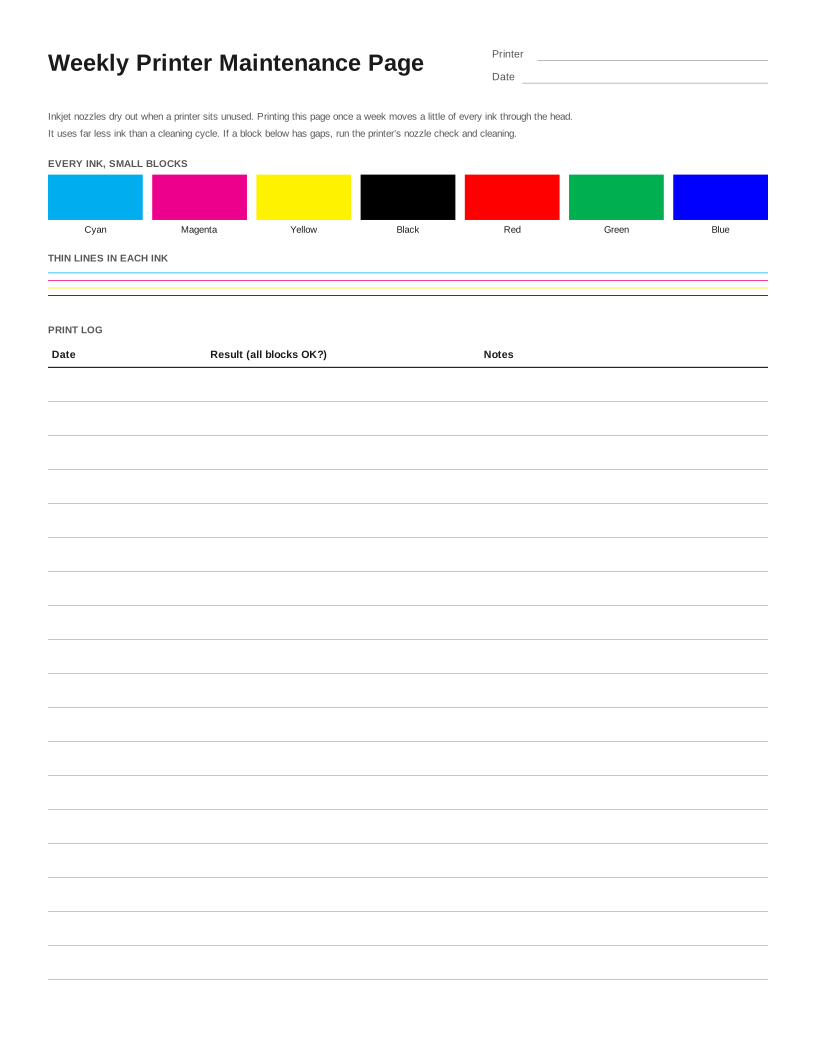 Weekly Inkjet Maintenance Page
Frequently asked questions
How many times should I run head cleaning?
Run one cleaning cycle, then print the nozzle check again. Most printer makers suggest no more than two or three cycles in a row, because cleaning uses a lot of ink. If it does not improve, let the printer sit for several hours (or overnight) and try once more.
How do I stop nozzles from clogging?
Print something with every color at least once a week, keep the printer switched off with its power button (so it caps the head) instead of at the wall, and avoid leaving empty cartridges in place. The Weekly Maintenance Page on this site is made for that.
Is this the same as the printer’s built-in nozzle check?
Not exactly. The built-in check fires each nozzle in a fixed pattern; a page printed from the computer cannot control individual nozzles. This page is good for spotting clogs and banding in normal printing, and the built-in check is best for confirming them.