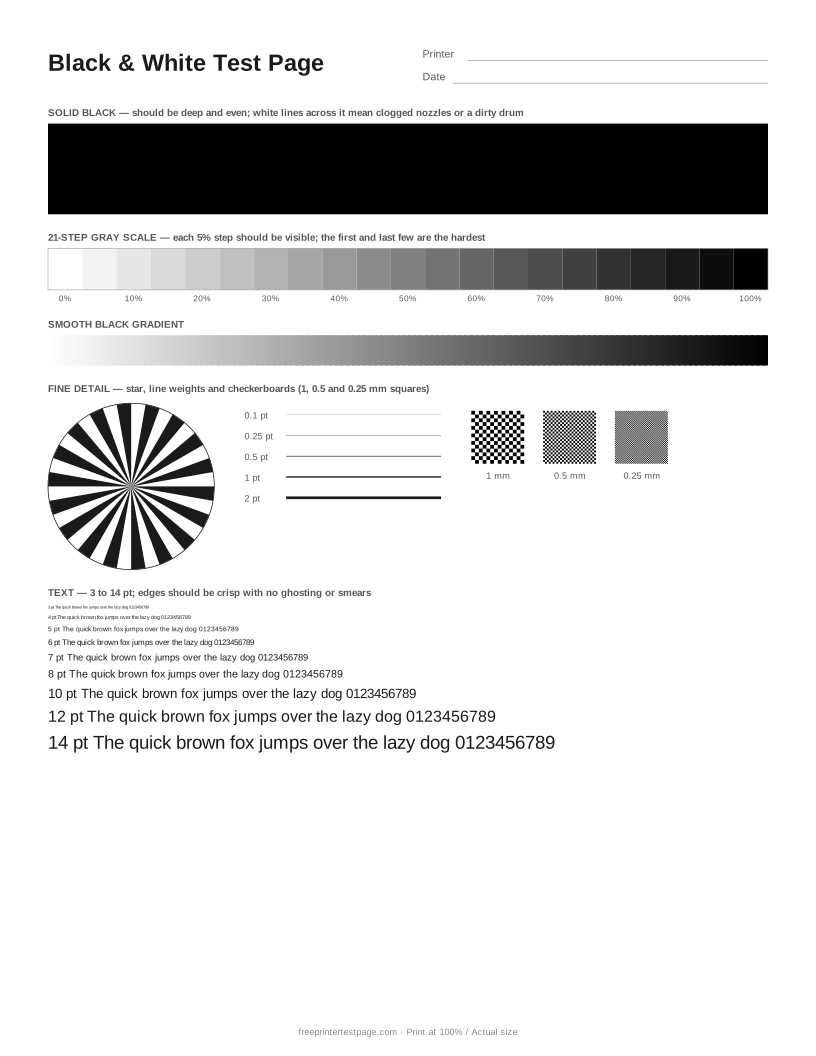
Laser printers show different problems from inkjets: repeating marks from a dirty drum, faded vertical stripes from low toner, and gray background haze. The solid black block and the gray steps make all of these easy to spot.
How to print it
- Pick the paper size above, and add the printer name and date if you want to keep the printout.
- Click Print test page (or Download PDF and open it).
- In the print dialog, choose your printer and set the scale to 100% or Actual size.Use plain paper unless you are testing photo paper.
How to read the printout
- Solid black
- Should be deep black and even. Faded vertical stripes on a laser printer usually mean low or unevenly spread toner; white horizontal lines on an inkjet mean clogged nozzles.
- 21-step gray scale
- Every 5% step should be visible. If 5–15% disappear, light detail is lost; if 85–100% merge, shadows will look flat.
- Smooth gradient
- Should run from white to black without visible bands. Laser printers often show slight steps, which is normal; sharp jumps are not.
- Fine detail
- The checkerboards test resolution: 1 mm squares should be crisp, 0.5 mm clean, and 0.25 mm may blur to gray on lower-resolution printers.
- Text
- Text down to 5 or 6 pt should be readable. Fuzzy or doubled letters point to a worn drum, damp paper or the wrong paper type setting.
Something wrong on your print?
Tap the problem you see for the usual causes and what to try.
Faded or light print
Usual causes: Draft or toner-save mode, low ink or toner, the wrong paper type setting, or partly clogged nozzles.
- In the print dialog, set quality to Normal or Best and turn off draft, economy or toner-save mode.
- Make sure the paper type in the dialog matches the paper in the tray.
- Check ink or toner levels, then run a nozzle check.
White lines or streaks across the page
Usual causes: On inkjets: clogged nozzles. On laser printers: low toner or a dirty or scratched drum. On thermal label printers: a dirty or dead print head dot.
- Inkjet: run the nozzle check and one head cleaning, then print the test page again.
- Laser: remove the toner cartridge and rock it gently side to side to spread the toner; clean the corona wire if your drum has one.
- Thermal: clean the print head with isopropyl alcohol and let it dry.
- If lines appear in exactly the same place after cleaning, a part (print head or drum) may need replacing.
Smudges, ink spots or toner marks
Usual causes: Ink not dry before the next sheet lands, ink on the rollers or inside the printer, or on laser printers loose toner or a dirty fuser.
- Let prints dry before stacking them, and choose the right paper type so the printer uses the right amount of ink.
- Clean the paper rollers with a lint-free cloth and a little water.
- Marks repeating at the same distance down the page come from a roller or the drum — measure the gap and check your manual.
Jagged, doubled or crooked lines
Usual causes: The print head is out of alignment, or the paper is feeding in at an angle.
- Run Print Head Alignment from the printer’s maintenance menu or the driver’s Maintenance tab.
- Adjust the paper guides so they touch the stack on both sides, and do not overfill the tray.
- Print the Alignment Test page to see whether the problem is the head (doubled lines) or the paper (uneven margins).
Page printed too small, too large or cut off
Usual causes: The print dialog is scaling the page, or the paper size setting does not match the paper.
- Set Scale to 100% or “Actual size”, and turn off “Fit to page” or “Shrink oversized pages”.
- Make sure the paper size in the dialog (Letter or A4) matches the paper in the tray.
- Print the Print Scale Test page and measure the rulers.
More test pages
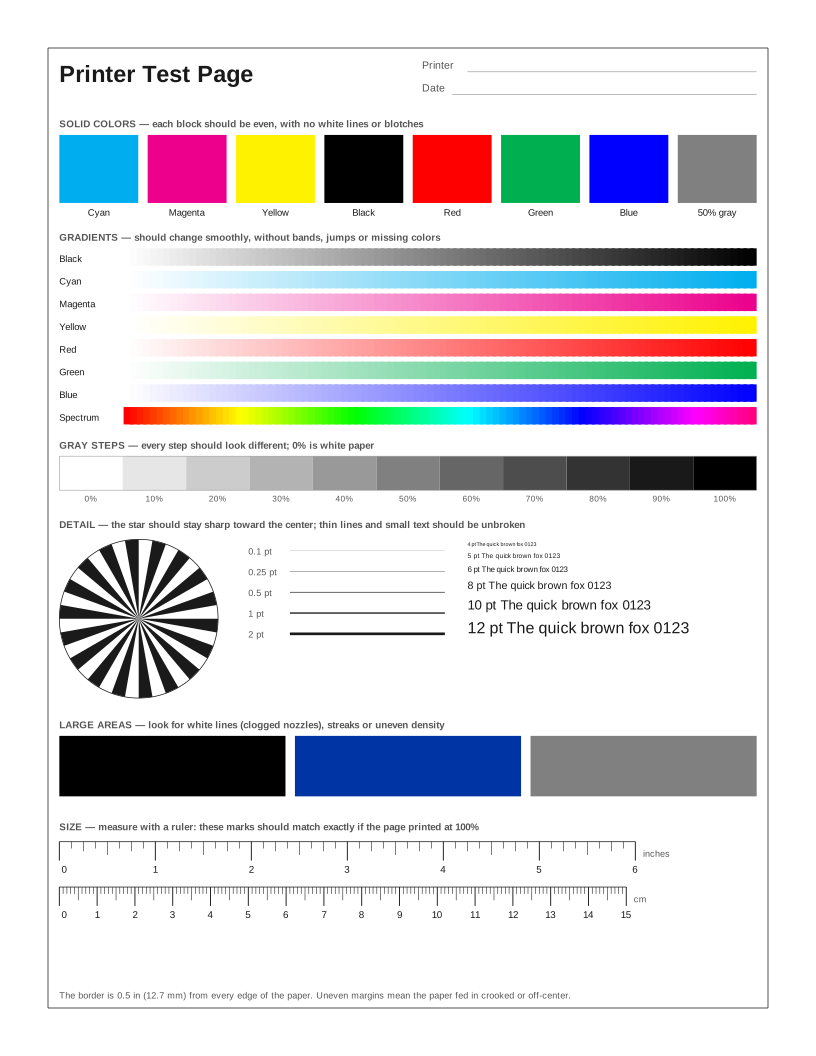 Printer Test Page
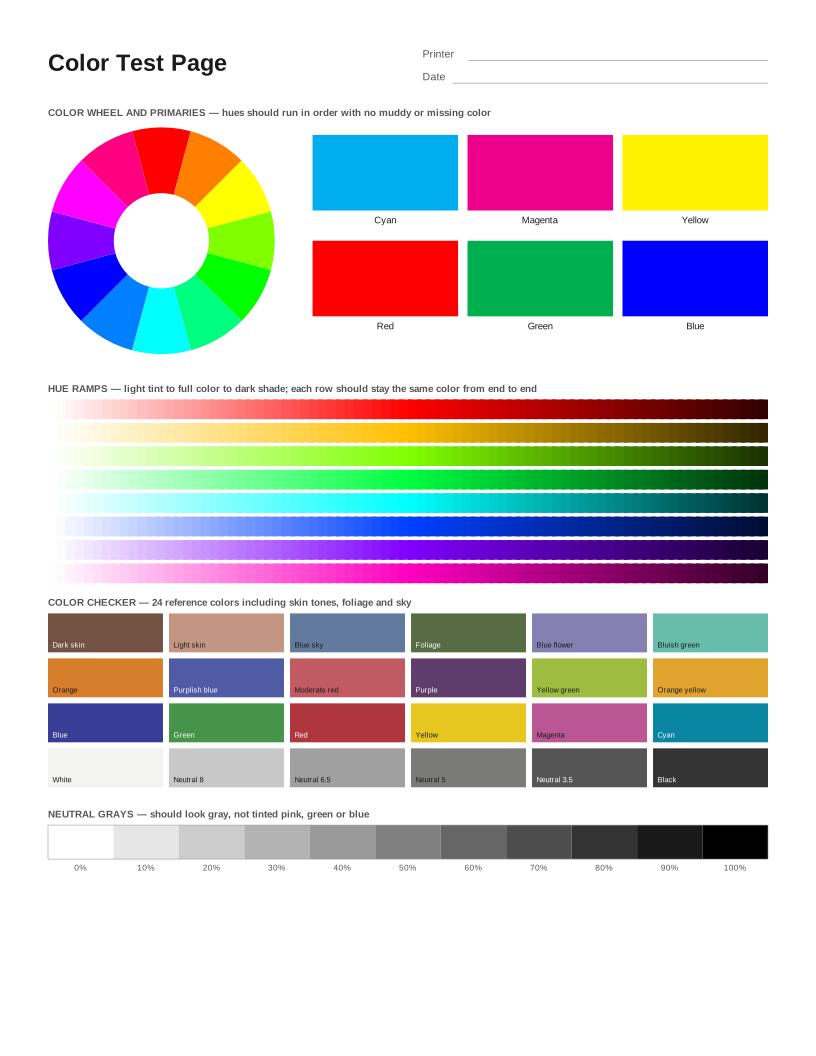 Color Printer Test Page
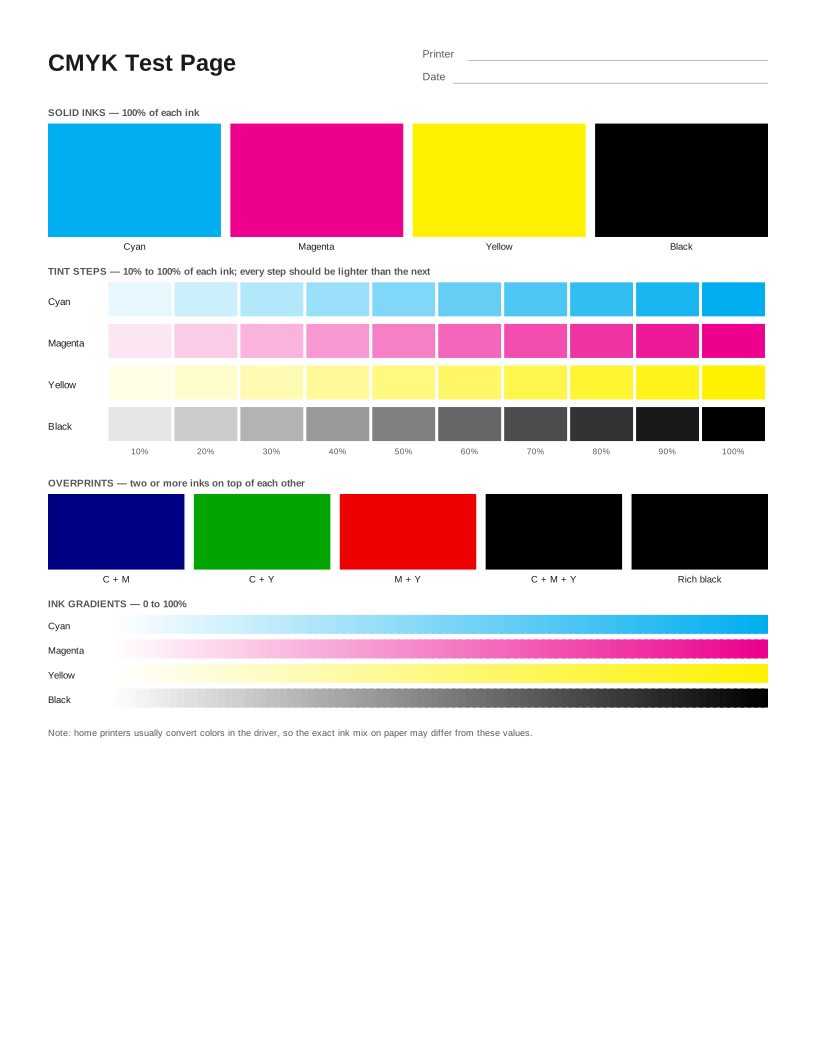 CMYK Test Page
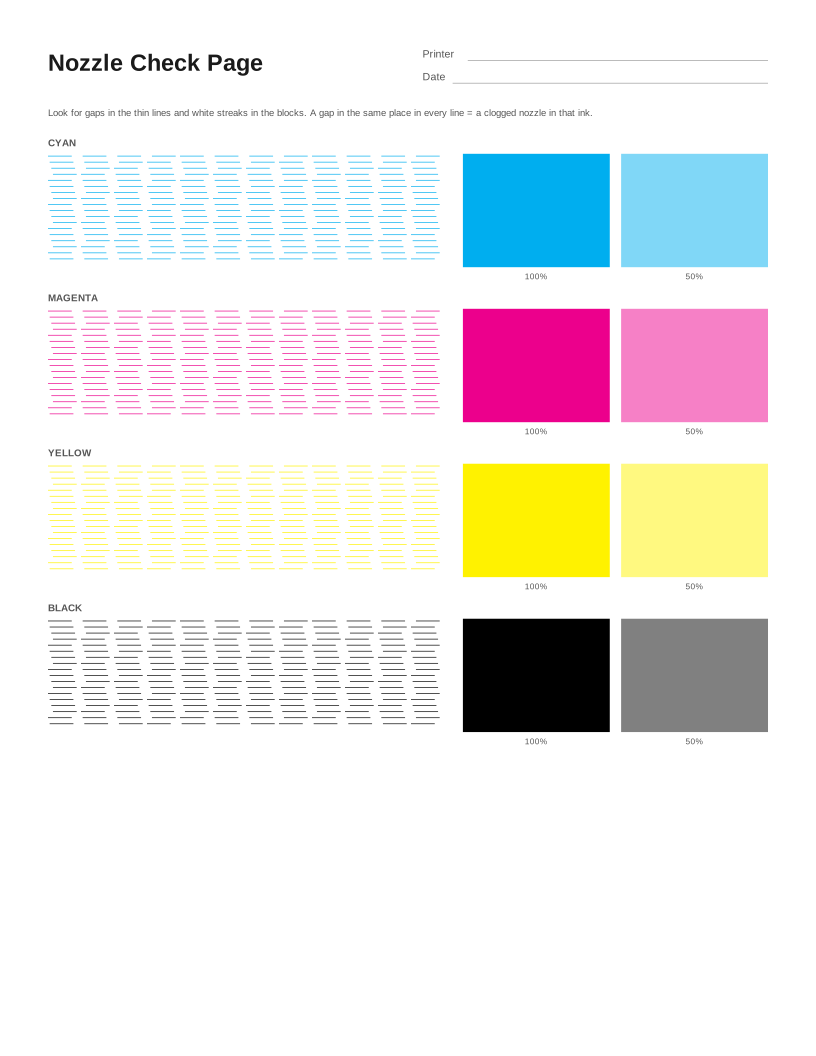 Nozzle Check Page
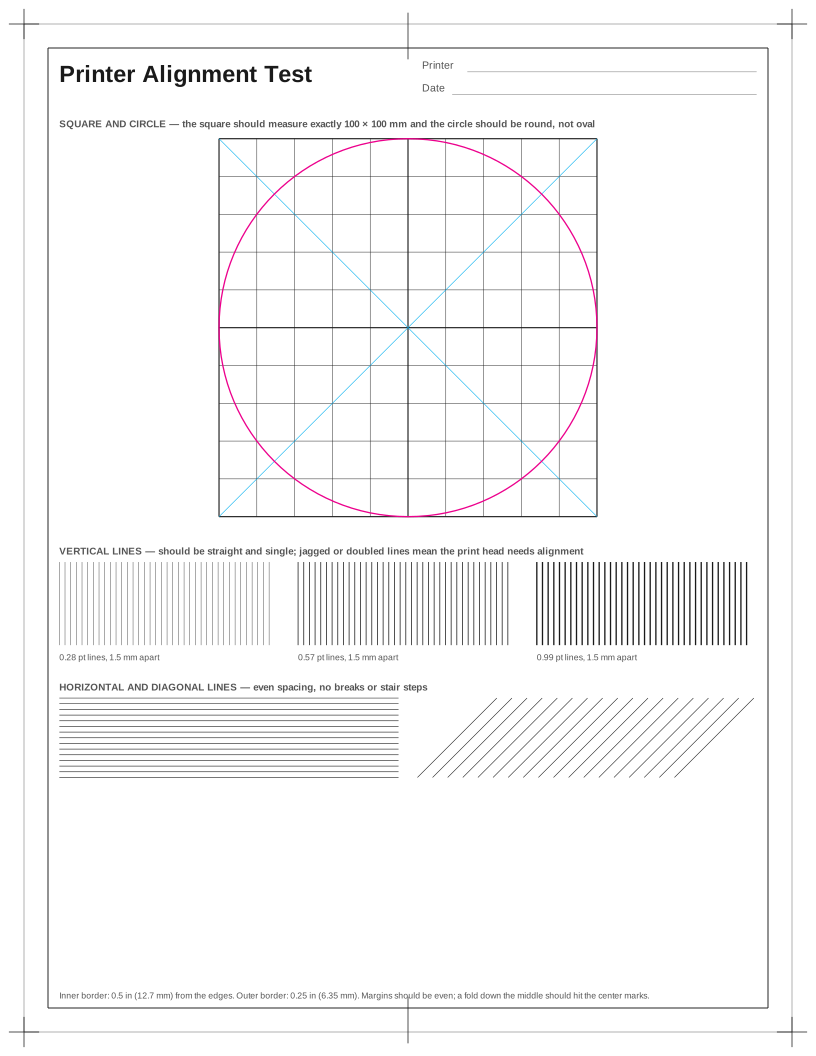 Printer Alignment Test Page
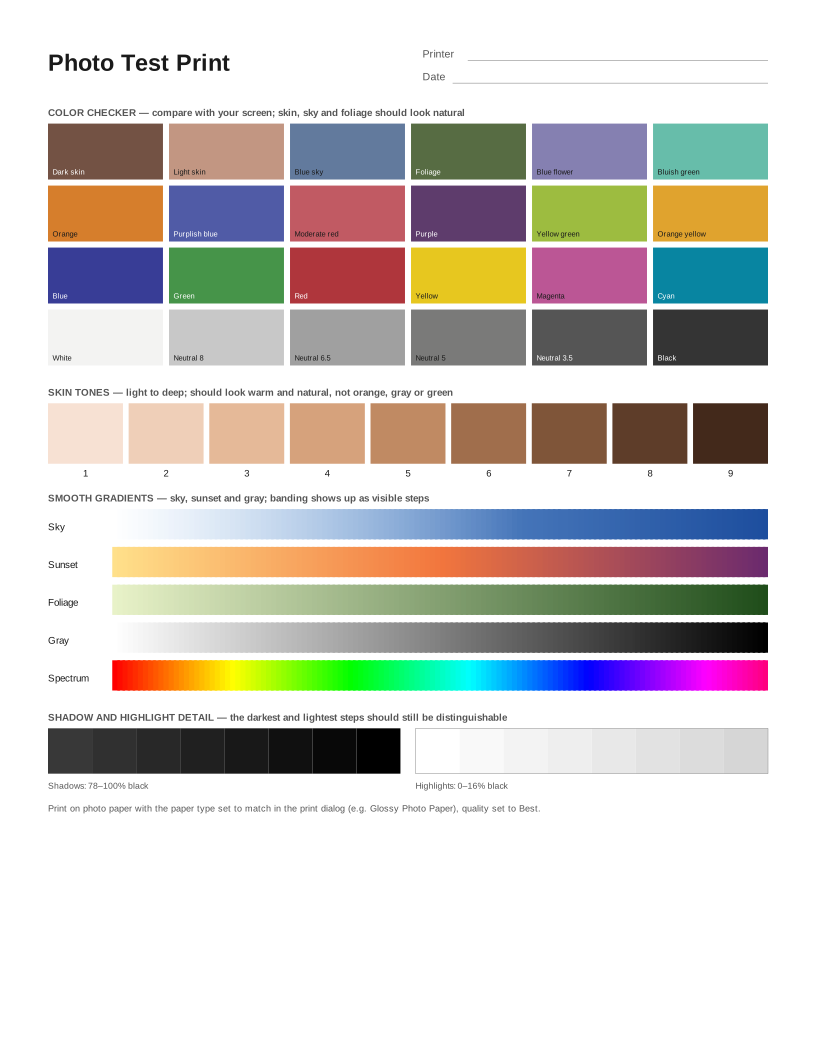 Photo Test Print
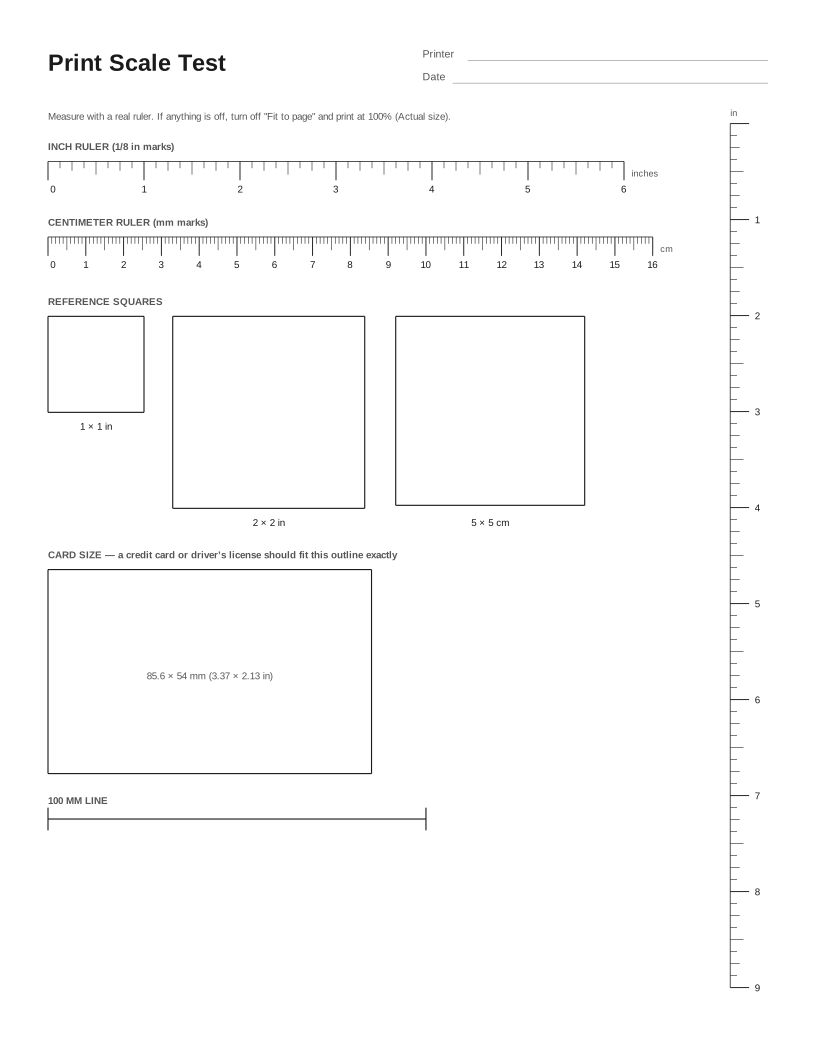 Print Scale Test (Actual Size Check)
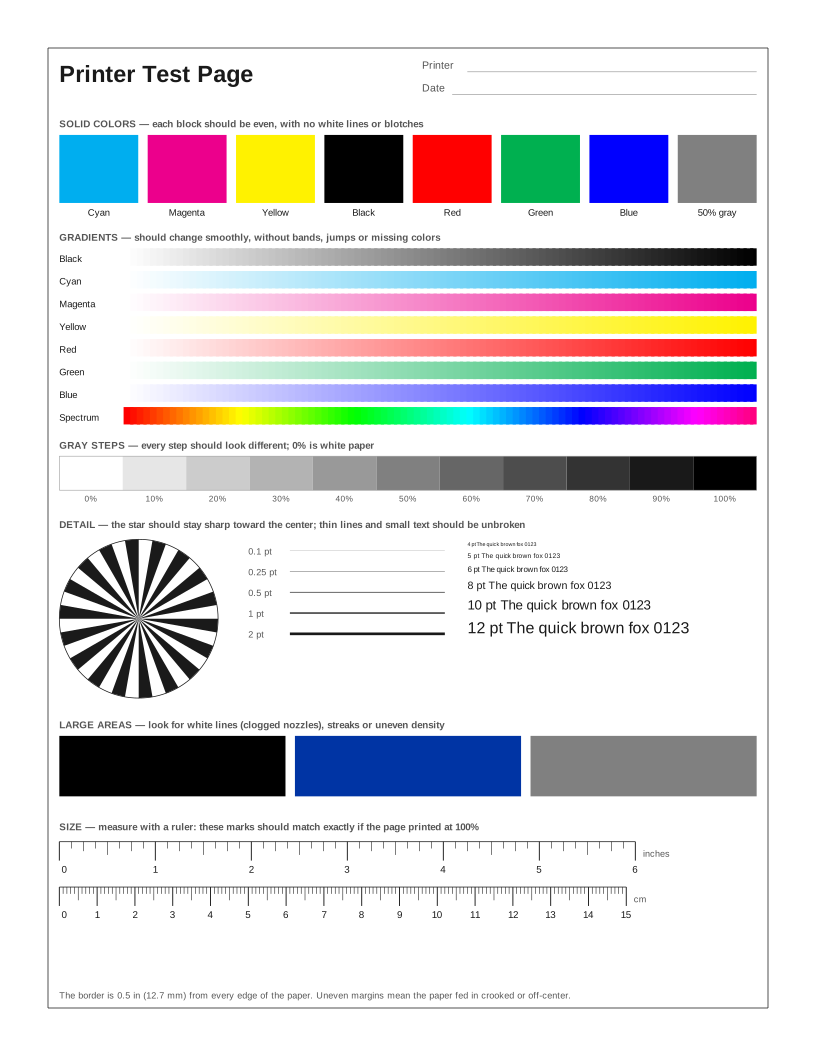 HP Printer Test Page
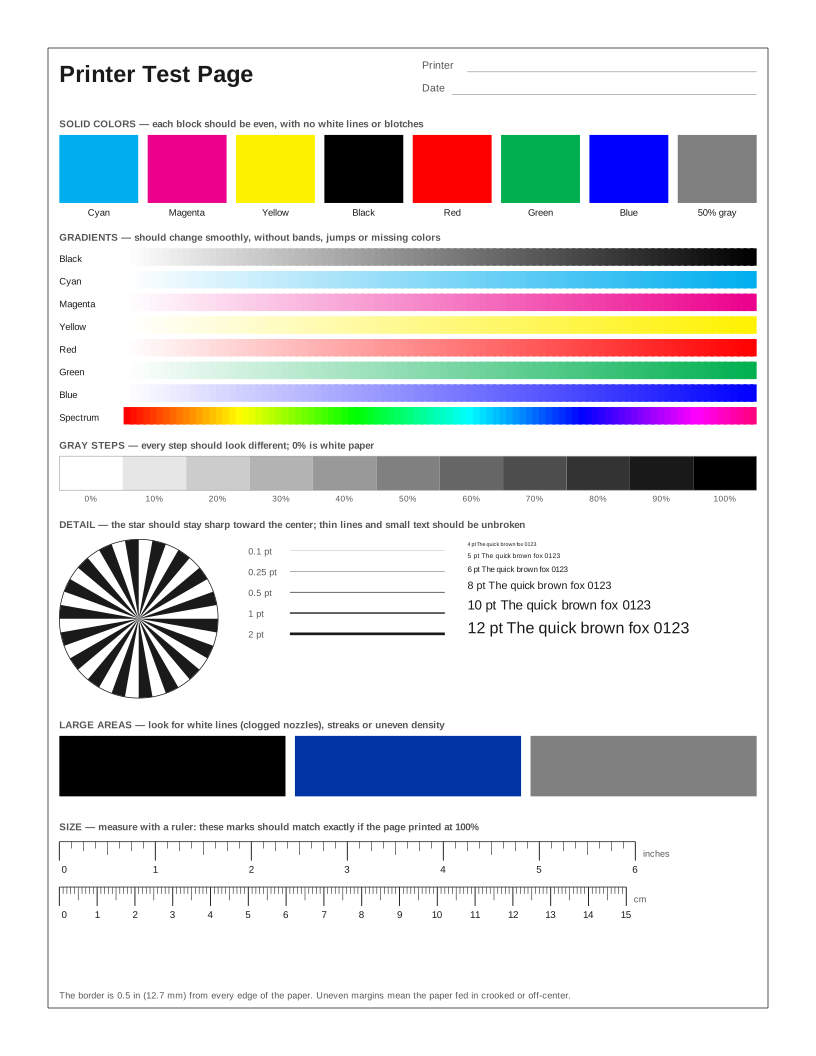 Epson Printer Test Page
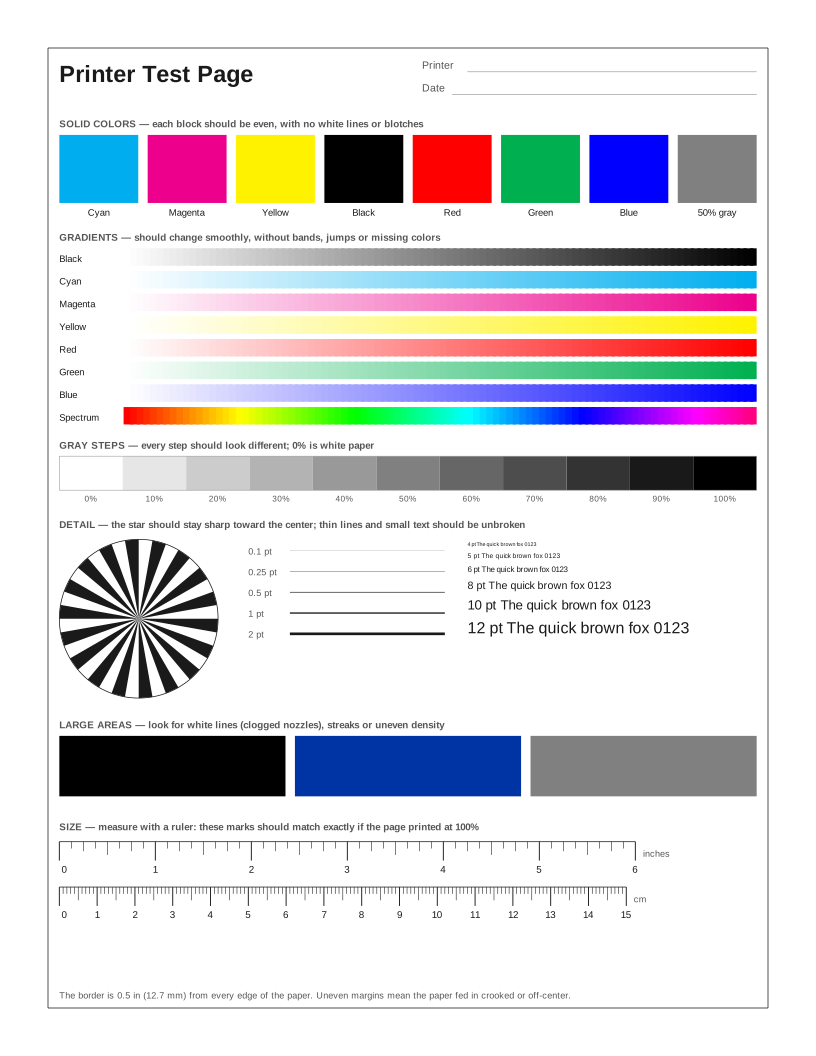 Canon Printer Test Page
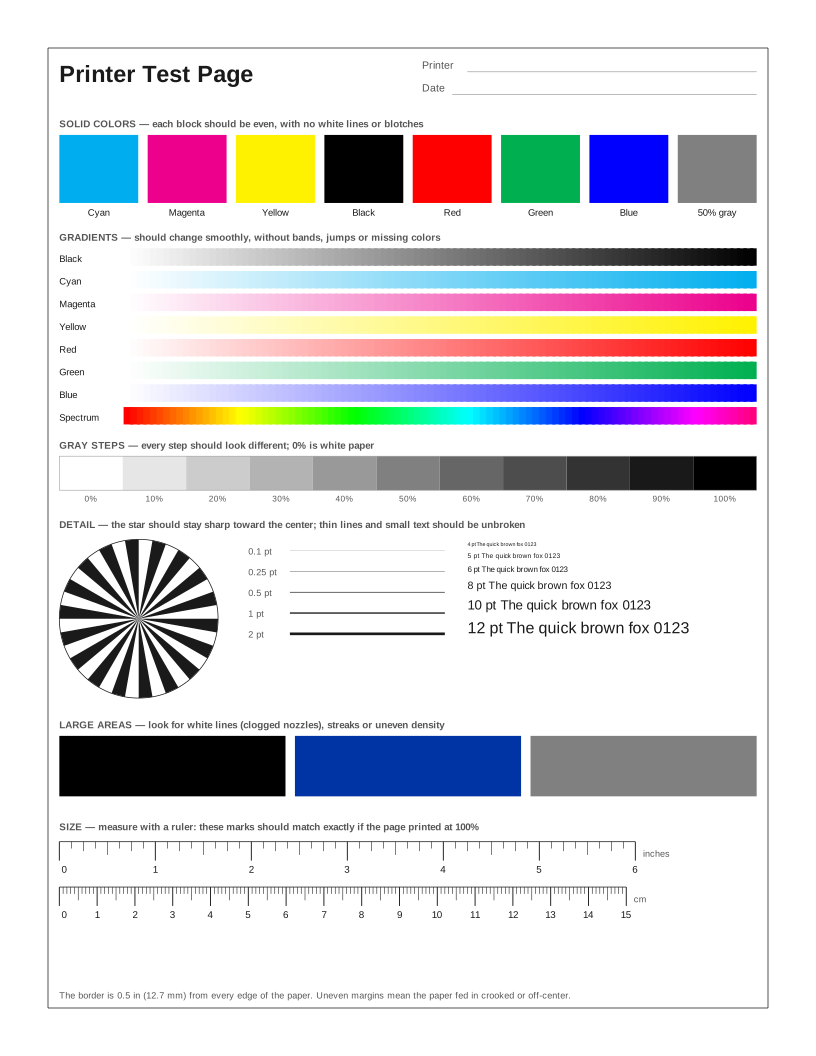 Brother Printer Test Page
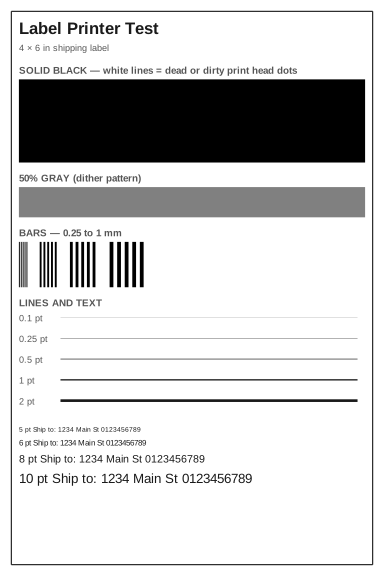 Label Printer Test Page
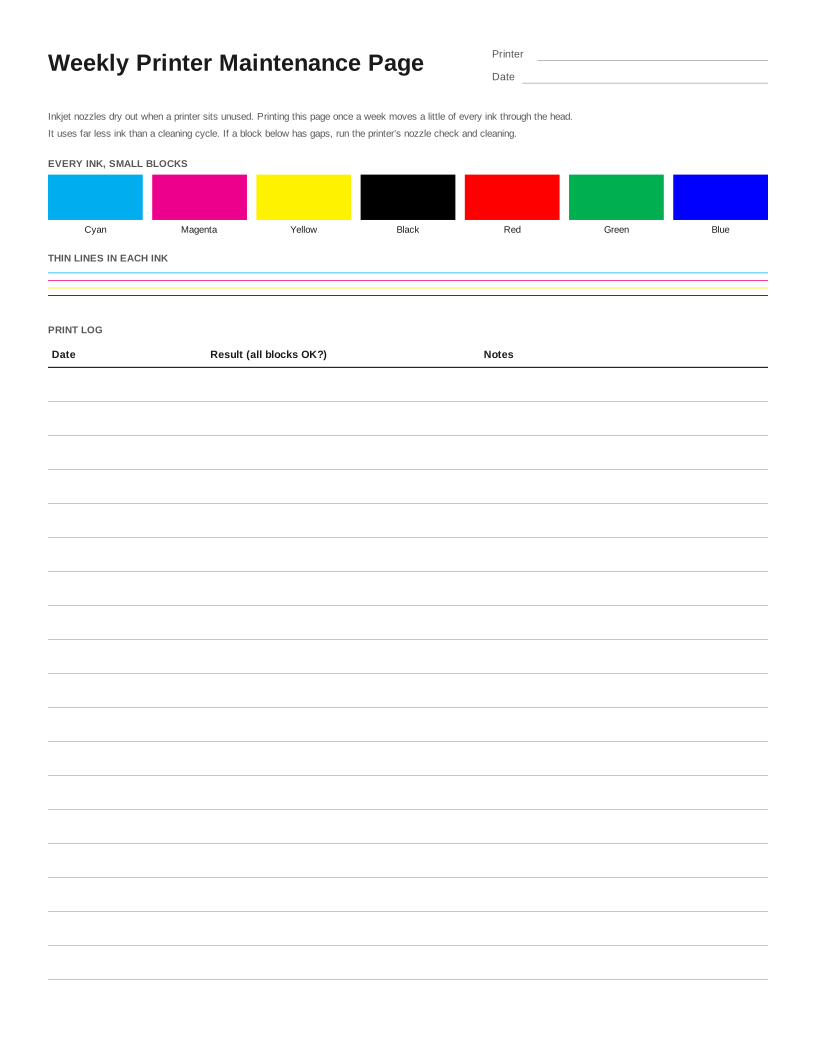 Weekly Inkjet Maintenance Page
Frequently asked questions
Can I use this on a color printer?
Yes. It checks the black cartridge and how the printer handles grays. Note that some color inkjets mix gray from color inks; if the grays look tinted, your printer is doing that, which is a color balance issue rather than a black ink problem.
What are repeating marks down a laser print?
Marks that repeat at the same distance down the page usually come from a roller or the drum. Measure the gap between them and look it up in your printer’s manual — each roller has its own repeat distance, which tells you which part to clean or replace.
Why is my black print gray instead of black?
Common causes are a toner-save or draft mode, low toner or ink, and a paper type set to something thicker or glossier than the paper. Turn off economy mode and print the page at normal or best quality.