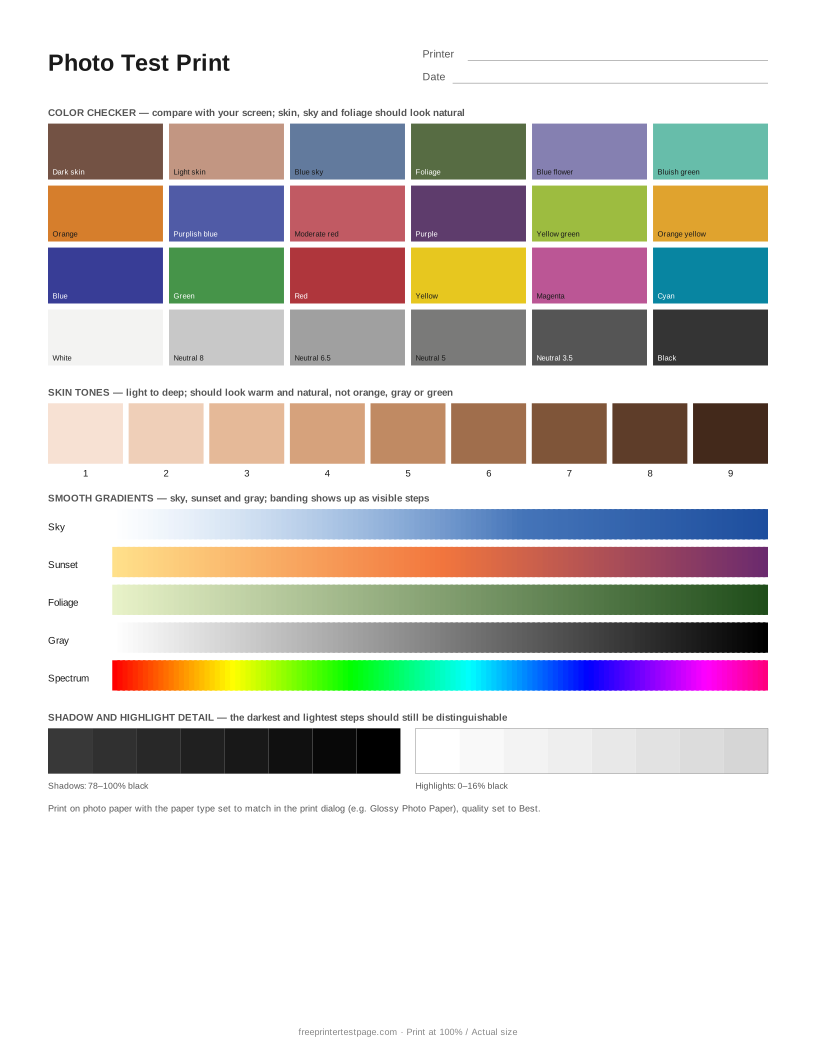
Print it on the photo paper you plan to use, with the matching paper type and Best quality selected in the print dialog. The paper type setting changes how much ink the printer lays down, so a mismatch is the most common reason for dull or muddy photos.
How to print it
- Pick the paper size above, and add the printer name and date if you want to keep the printout.
- Click Print test page (or Download PDF and open it).
- In the print dialog, choose your printer and set the scale to 100% or Actual size.Use plain paper unless you are testing photo paper.
How to read the printout
- Color chart
- Patches should look like their names. Compare with the screen in daylight; prints are usually a little darker than a bright screen.
- Skin tones
- Should look warm and natural. Orange, gray or green skin is the first thing people notice in a portrait.
- Gradients
- Skies and sunsets should blend smoothly. Bands or steps mean the quality setting is too low or the head needs cleaning.
- Shadows and highlights
- The darkest and the lightest steps should still be distinguishable. If they merge, the print will lose detail in dark hair or bright clouds.
Something wrong on your print?
Tap the problem you see for the usual causes and what to try.
Grays or whites have a color cast
Usual causes: One ink is partly clogged or running low, color management is applied twice, or the paper type is wrong.
- Run a nozzle check — a weak ink is the most common cause of a color cast.
- Let either the app or the printer driver manage color, not both.
- Choose the paper type that matches your paper and print again.
Gradients show bands or steps
Usual causes: Low print quality setting, partly clogged nozzles, or a paper feed that advances unevenly.
- Print at Best or High quality and turn off any fast or draft mode.
- Run a nozzle check and clean if needed.
- Use the paper type setting that matches your paper; plain-paper settings on glossy paper often cause banding.
Faded or light print
Usual causes: Draft or toner-save mode, low ink or toner, the wrong paper type setting, or partly clogged nozzles.
- In the print dialog, set quality to Normal or Best and turn off draft, economy or toner-save mode.
- Make sure the paper type in the dialog matches the paper in the tray.
- Check ink or toner levels, then run a nozzle check.
Smudges, ink spots or toner marks
Usual causes: Ink not dry before the next sheet lands, ink on the rollers or inside the printer, or on laser printers loose toner or a dirty fuser.
- Let prints dry before stacking them, and choose the right paper type so the printer uses the right amount of ink.
- Clean the paper rollers with a lint-free cloth and a little water.
- Marks repeating at the same distance down the page come from a roller or the drum — measure the gap and check your manual.
A color is missing or looks wrong
Usual causes: Empty or dried cartridge, clogged nozzles, protective tape on a new cartridge, or a cartridge or ink bottle in the wrong slot.
- Check ink levels and make sure all protective tape is removed from new cartridges.
- Print the Nozzle Check page (or the printer’s built-in nozzle check) to see which ink is affected.
- Run one head cleaning, then check again. Do not run more than two or three in a row.
- If one color is replaced by another, check that each cartridge or ink bottle is in the right slot.
More test pages
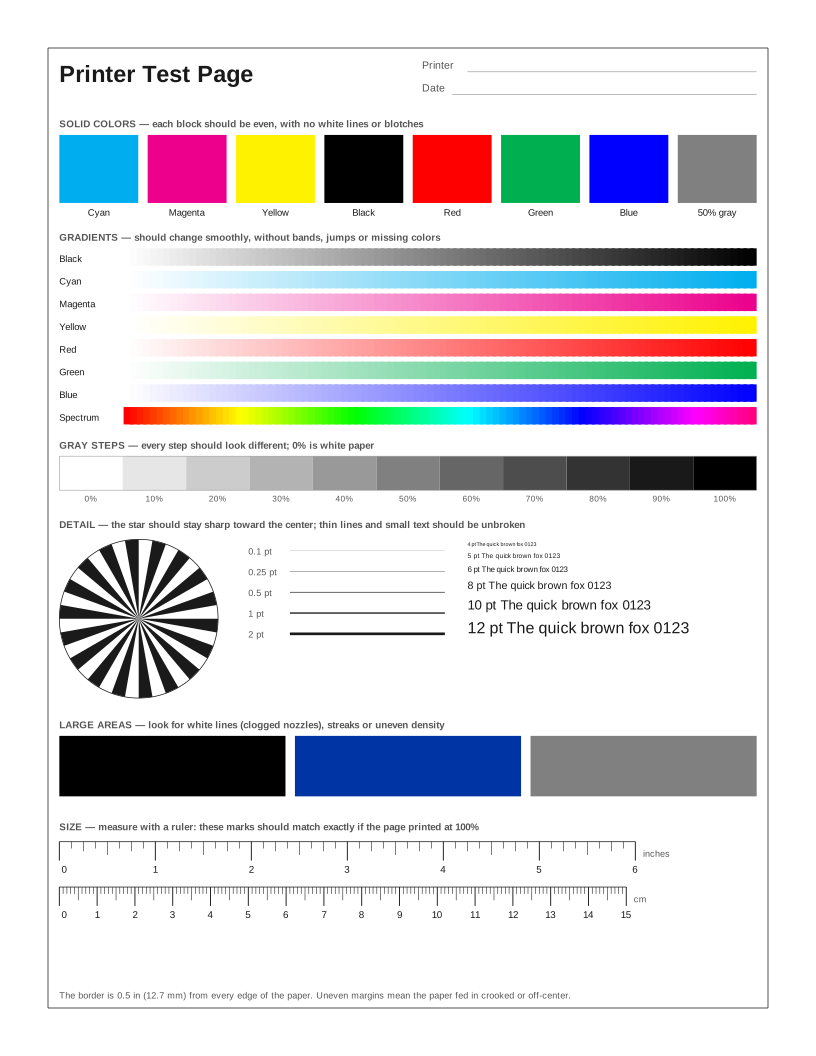 Printer Test Page
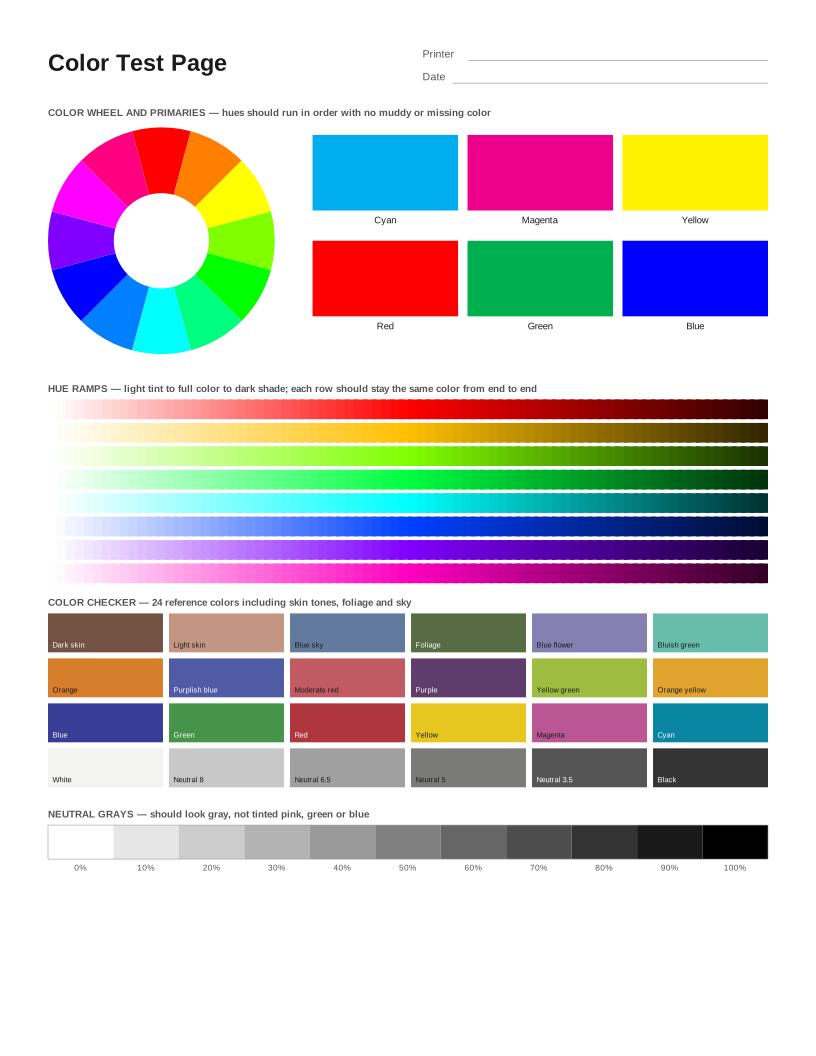 Color Printer Test Page
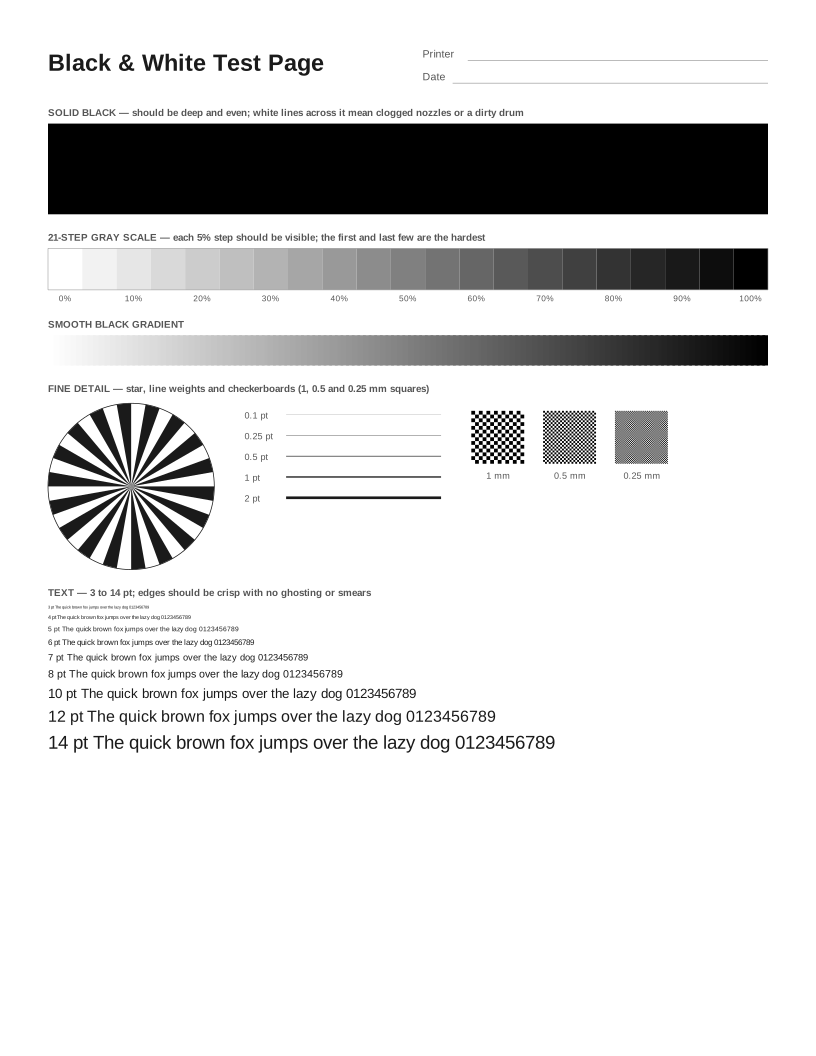 Black and White Test Page
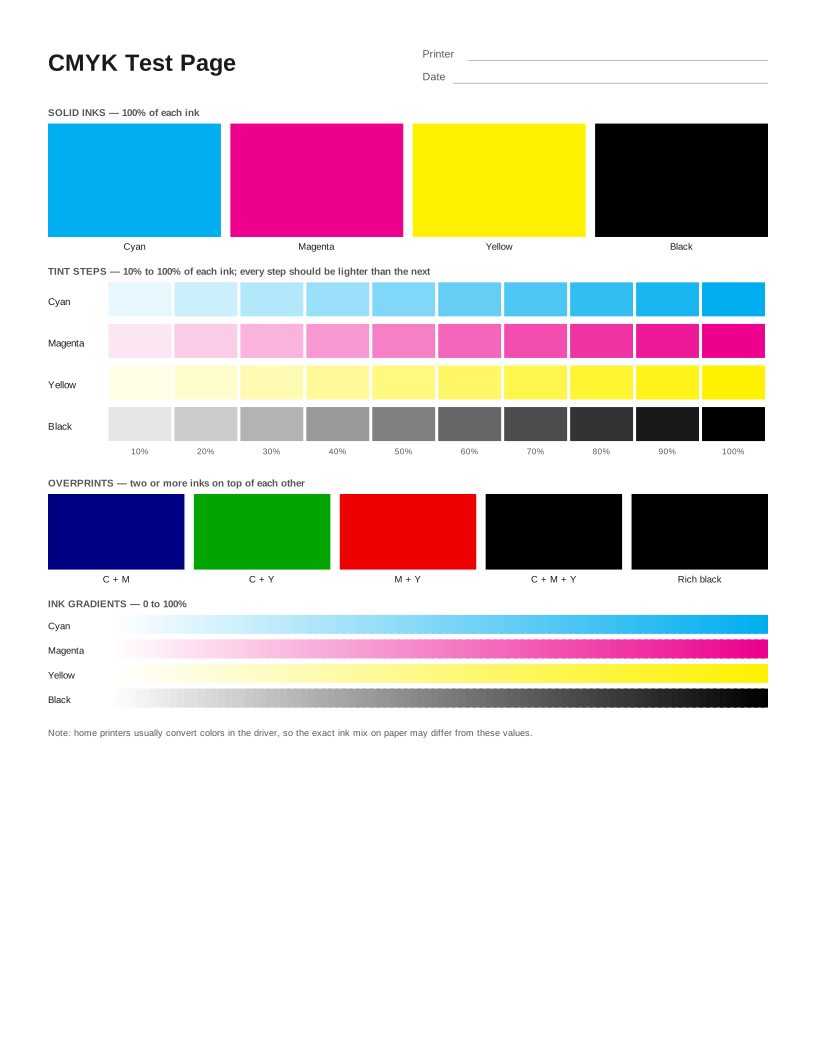 CMYK Test Page
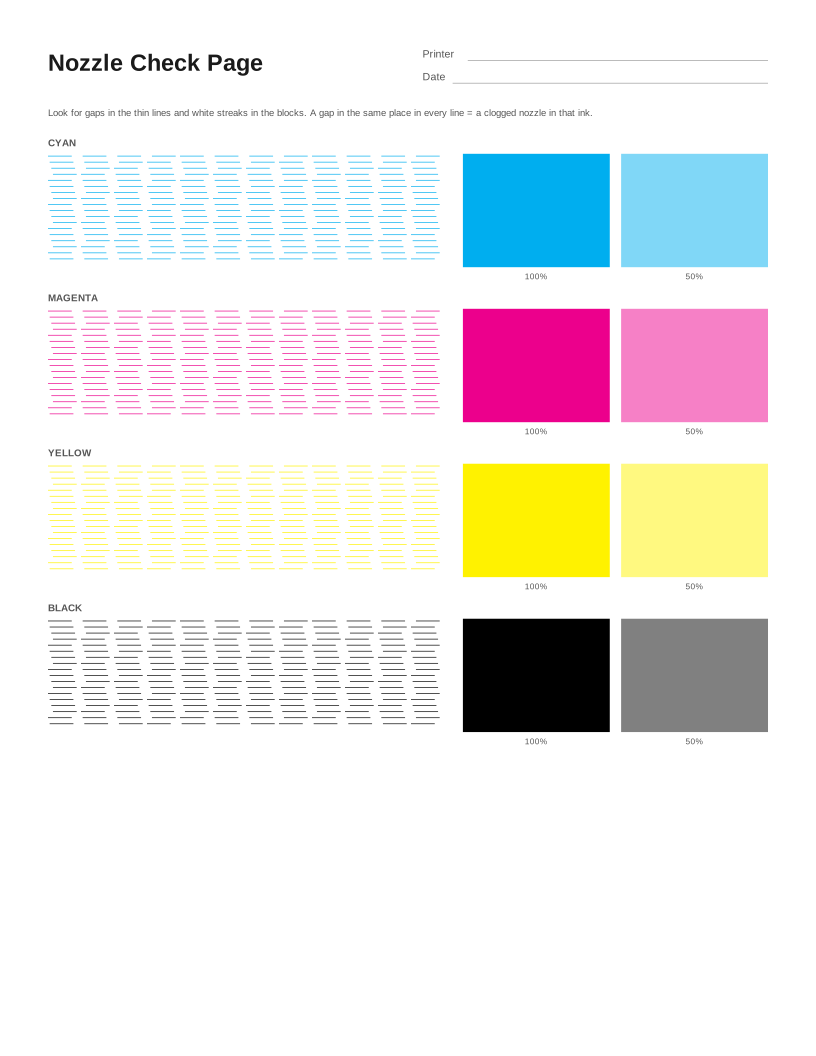 Nozzle Check Page
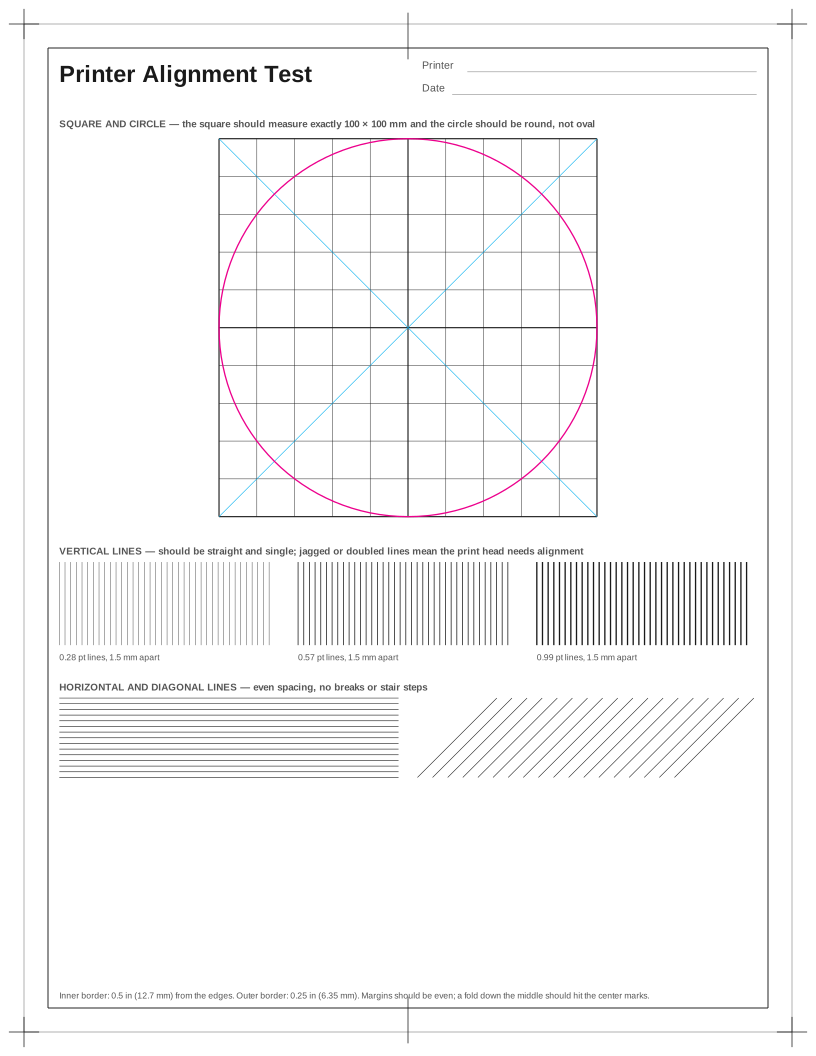 Printer Alignment Test Page
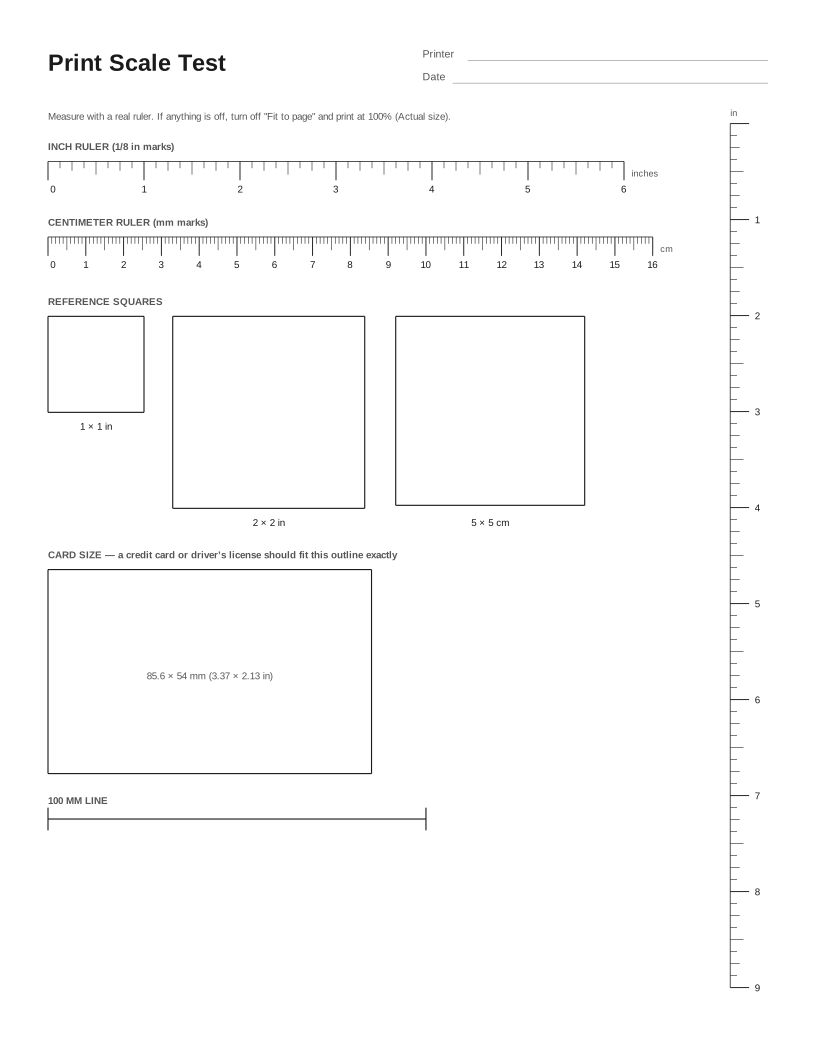 Print Scale Test (Actual Size Check)
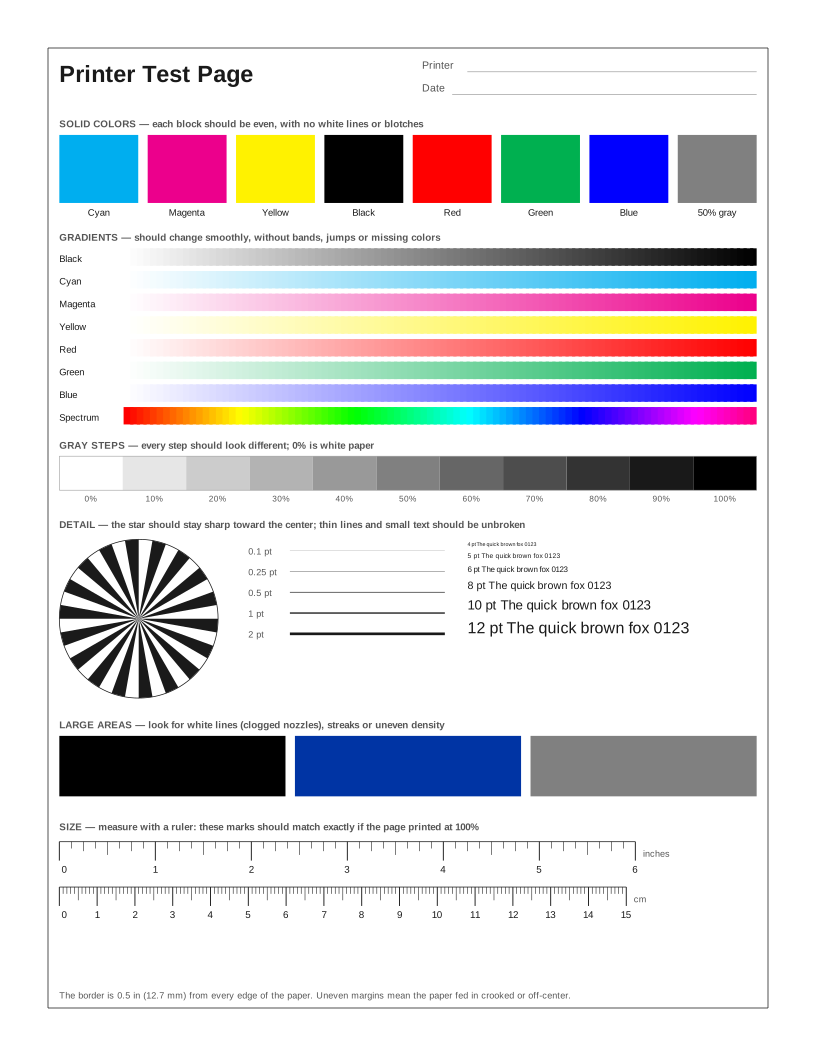 HP Printer Test Page
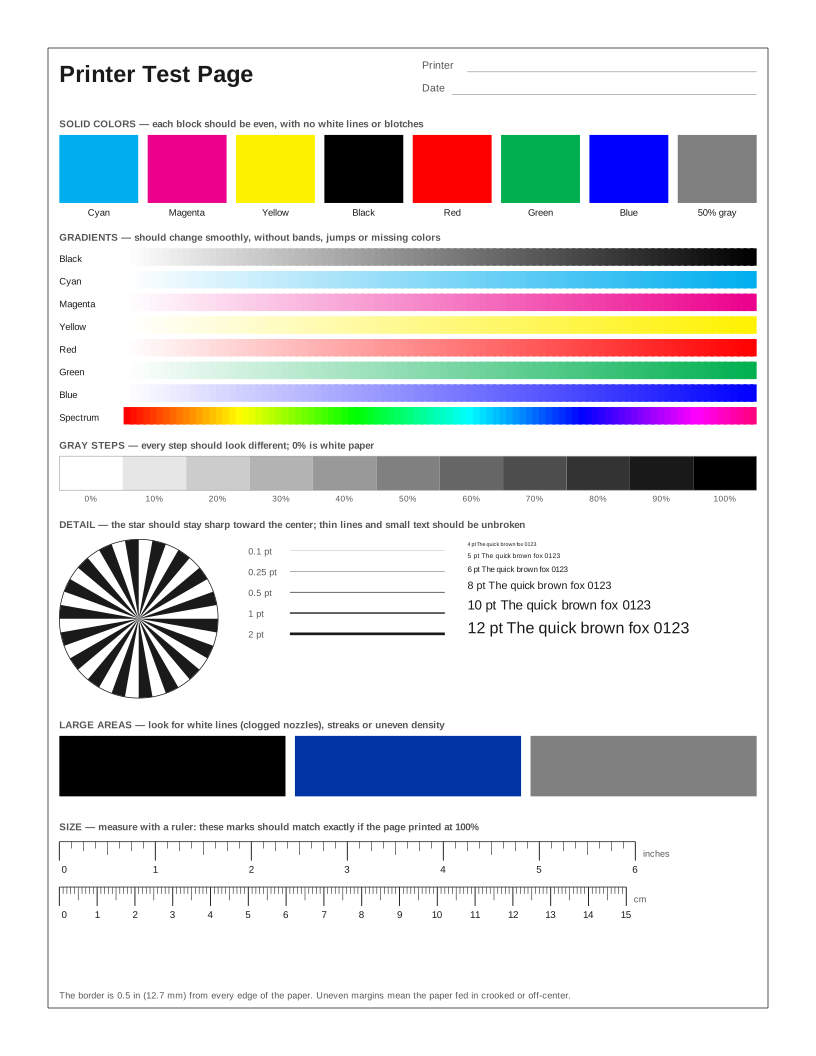 Epson Printer Test Page
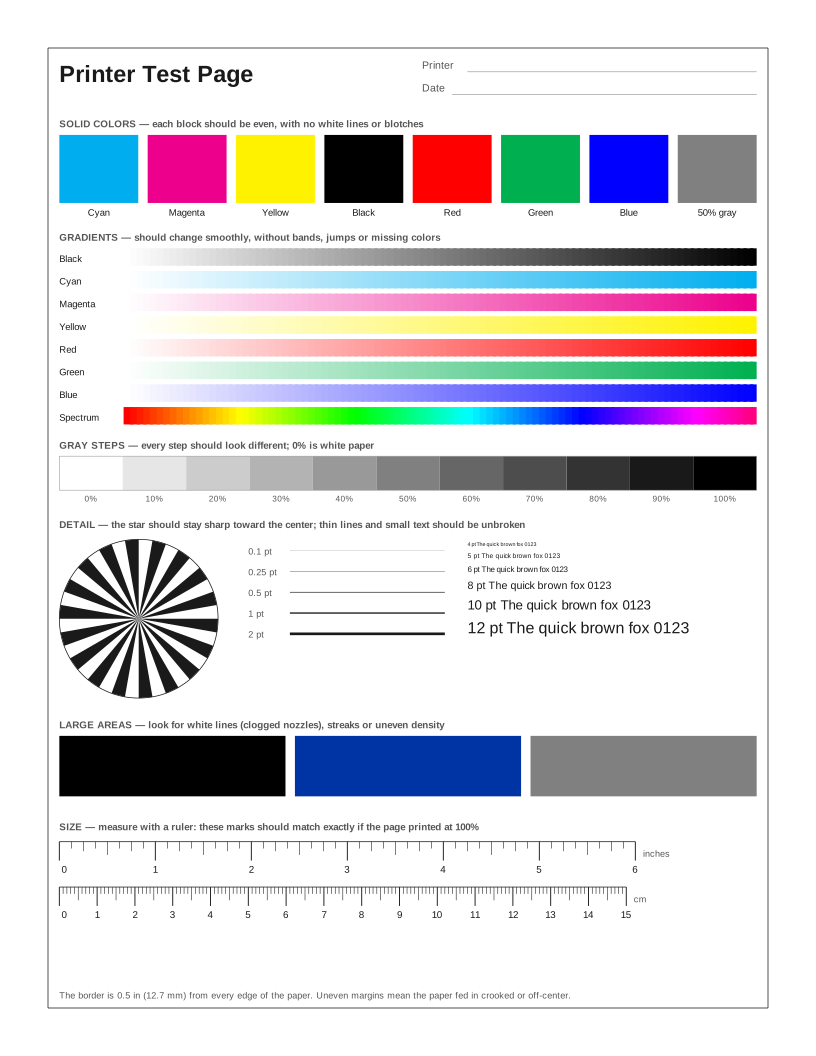 Canon Printer Test Page
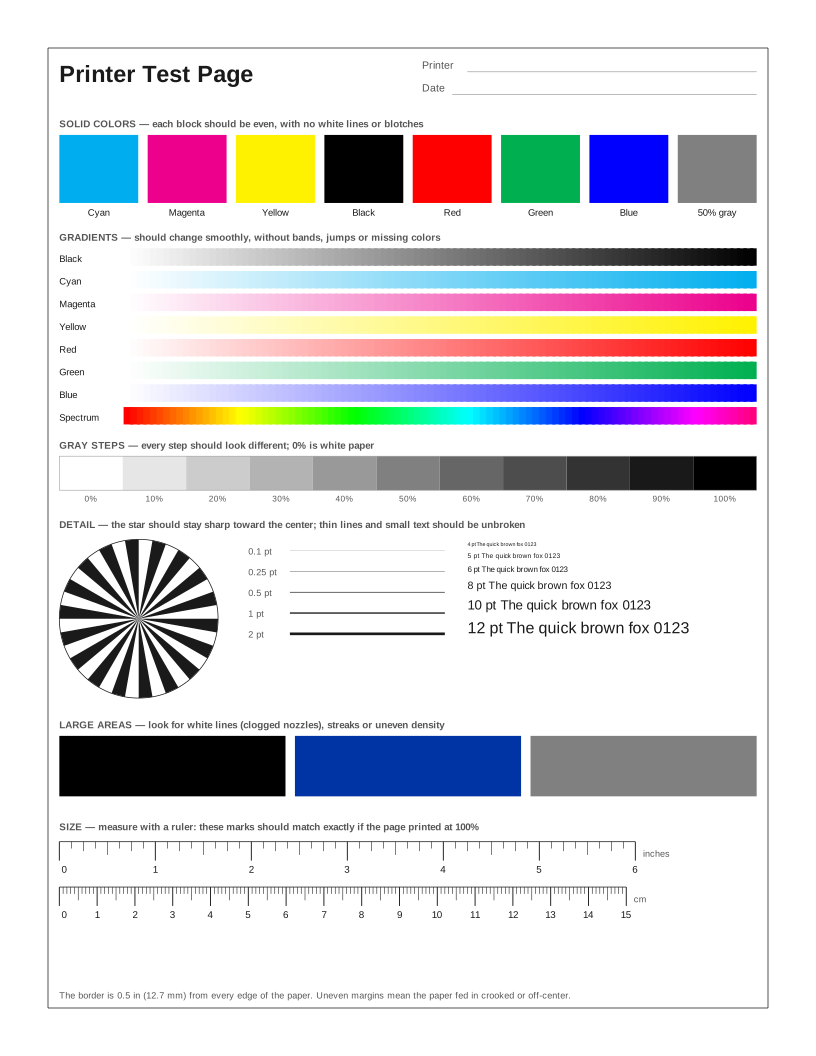 Brother Printer Test Page
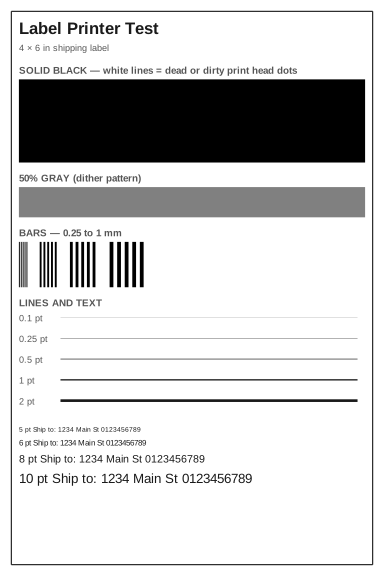 Label Printer Test Page
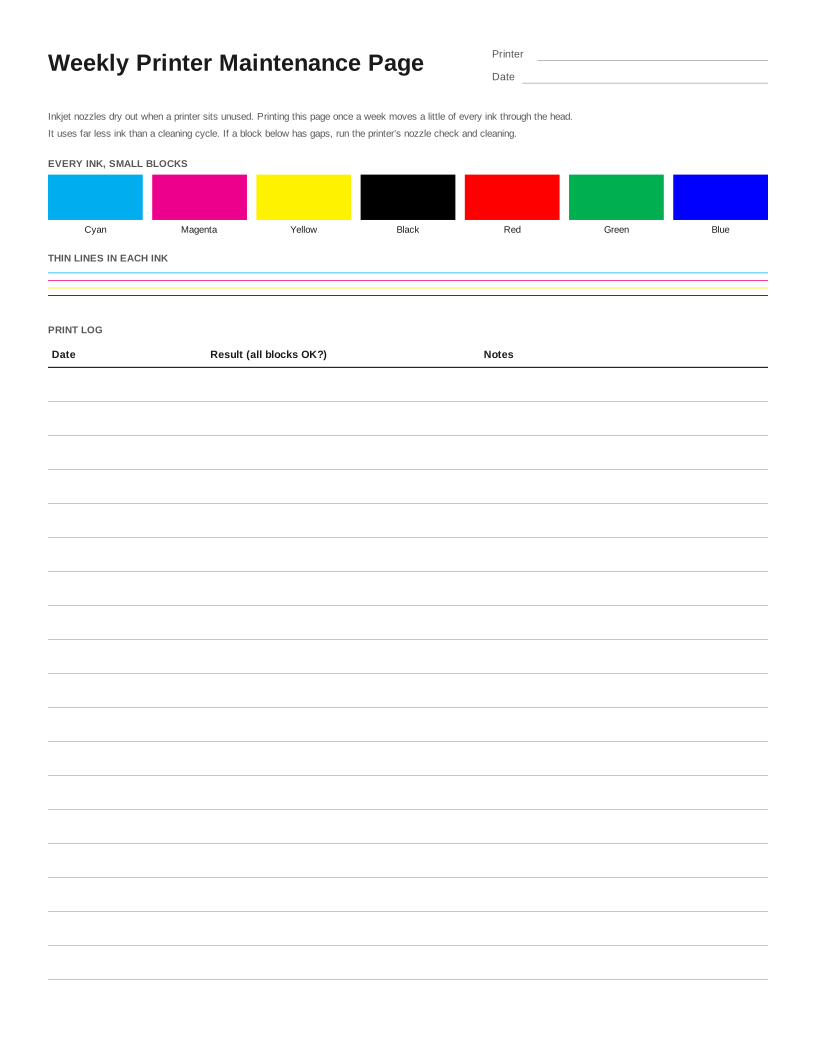 Weekly Inkjet Maintenance Page
Frequently asked questions
Why do my photos print too dark?
Screens are much brighter than paper, so photos edited on a bright screen often print dark. Lower your screen brightness when editing, and check that the paper type in the print dialog matches the paper.
Should I use the printer’s or the app’s color management?
Use one, not both. Either let the printer driver manage color, or let the app (such as Photoshop or Lightroom) manage it with the paper’s profile and turn color management off in the driver. Both on at once gives strong color casts.
Can I test on plain paper first?
Yes, to check for missing colors and streaks. Colors will look duller on plain paper, so judge color accuracy only on the photo paper you will actually use.