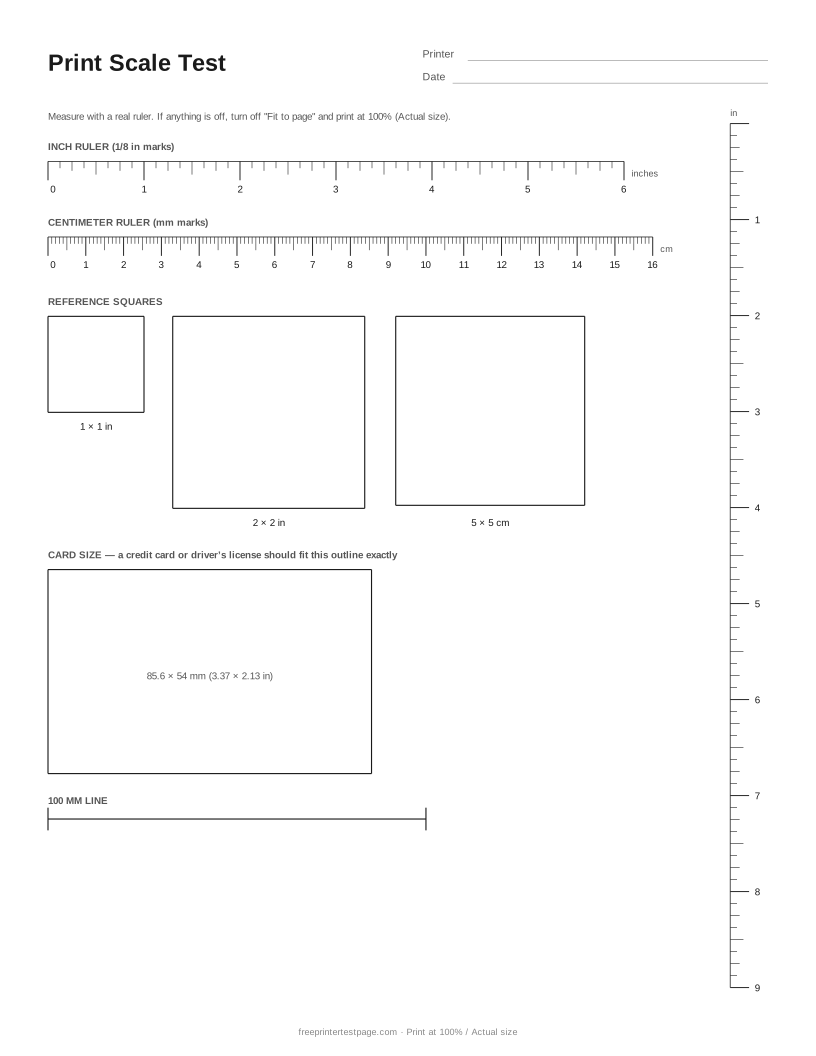
It has an inch ruler, a centimeter ruler, 1 inch, 2 inch and 5 cm squares, a credit-card outline you can check without a ruler, a 100 mm line and a vertical ruler for the other direction.
How to print it
- Pick the paper size above, and add the printer name and date if you want to keep the printout.
- Click Print test page (or Download PDF and open it).
- In the print dialog, choose your printer and set the scale to 100% or Actual size.Use plain paper unless you are testing photo paper.
How to read the printout
- Rulers
- Lay a real ruler along the printed one. At 100% the marks line up over the whole length; at 97% the 6-inch mark ends about 3/16 in short.
- Squares
- The 1 in, 2 in and 5 cm squares should measure exactly that in both directions.
- Card outline
- No ruler? A credit card, debit card or driver’s license should fit the outline exactly.
- Vertical ruler
- Checks the scale from top to bottom. Some printers scale the two directions slightly differently.
Something wrong on your print?
Tap the problem you see for the usual causes and what to try.
Page printed too small, too large or cut off
Usual causes: The print dialog is scaling the page, or the paper size setting does not match the paper.
- Set Scale to 100% or “Actual size”, and turn off “Fit to page” or “Shrink oversized pages”.
- Make sure the paper size in the dialog (Letter or A4) matches the paper in the tray.
- Print the Print Scale Test page and measure the rulers.
More test pages
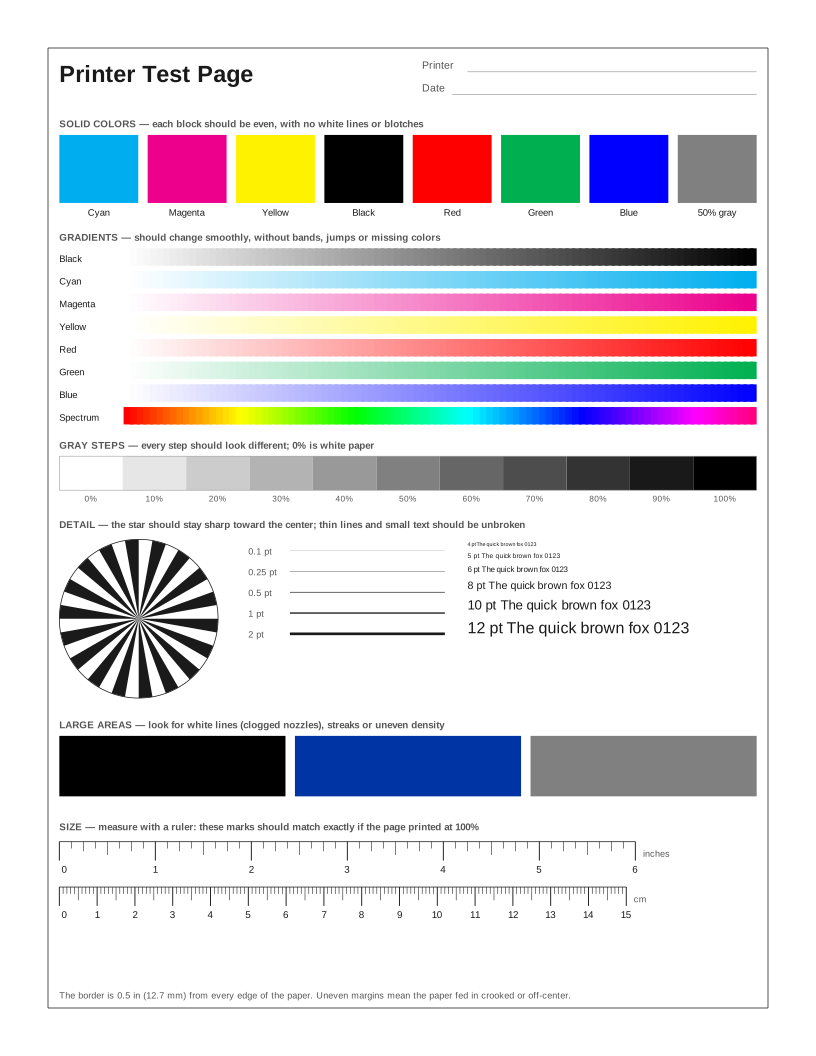 Printer Test Page
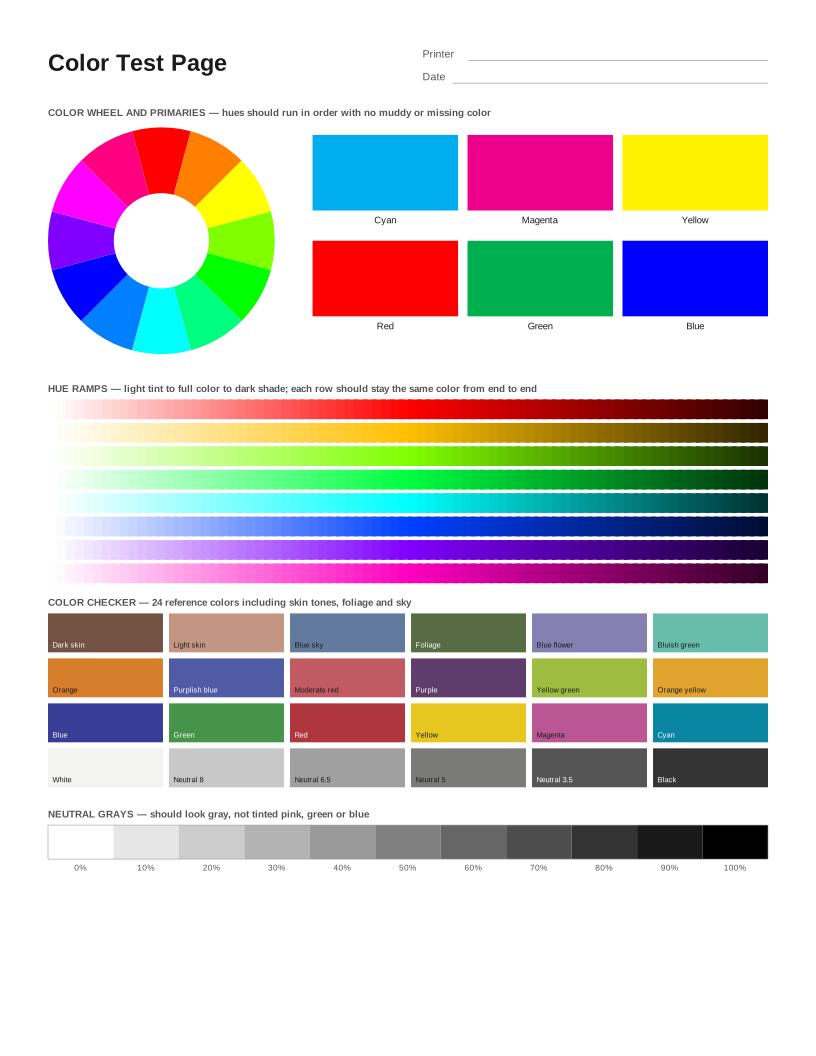 Color Printer Test Page
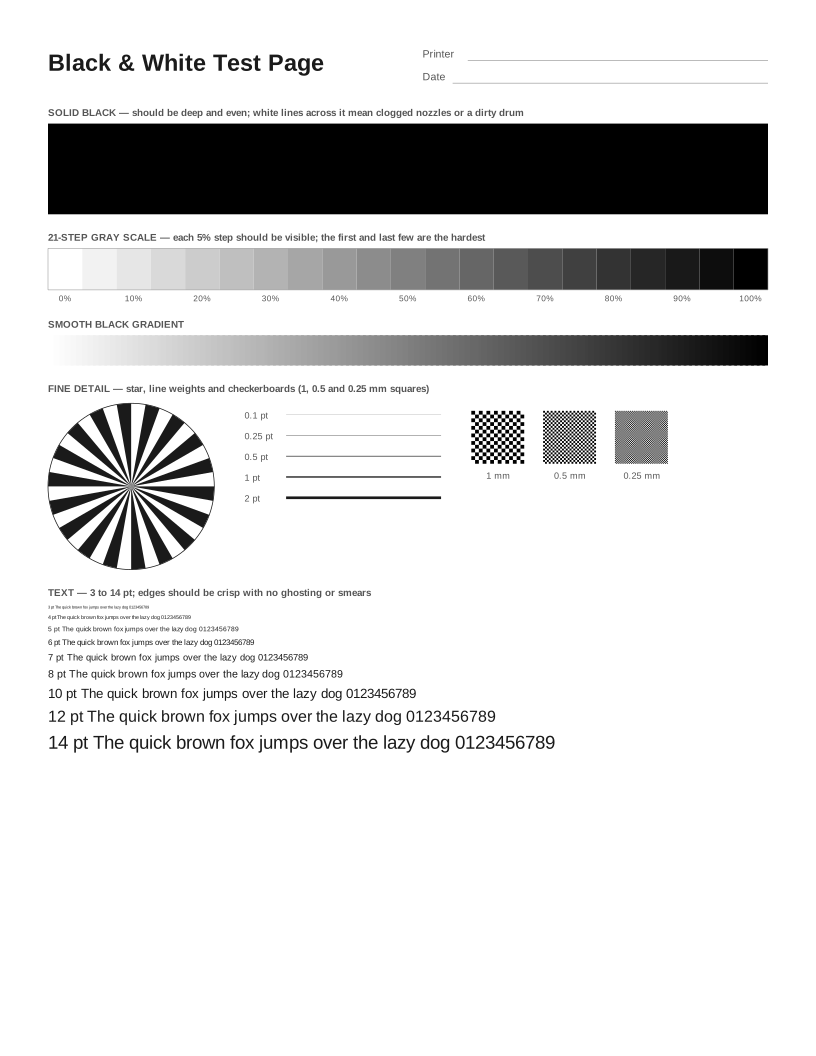 Black and White Test Page
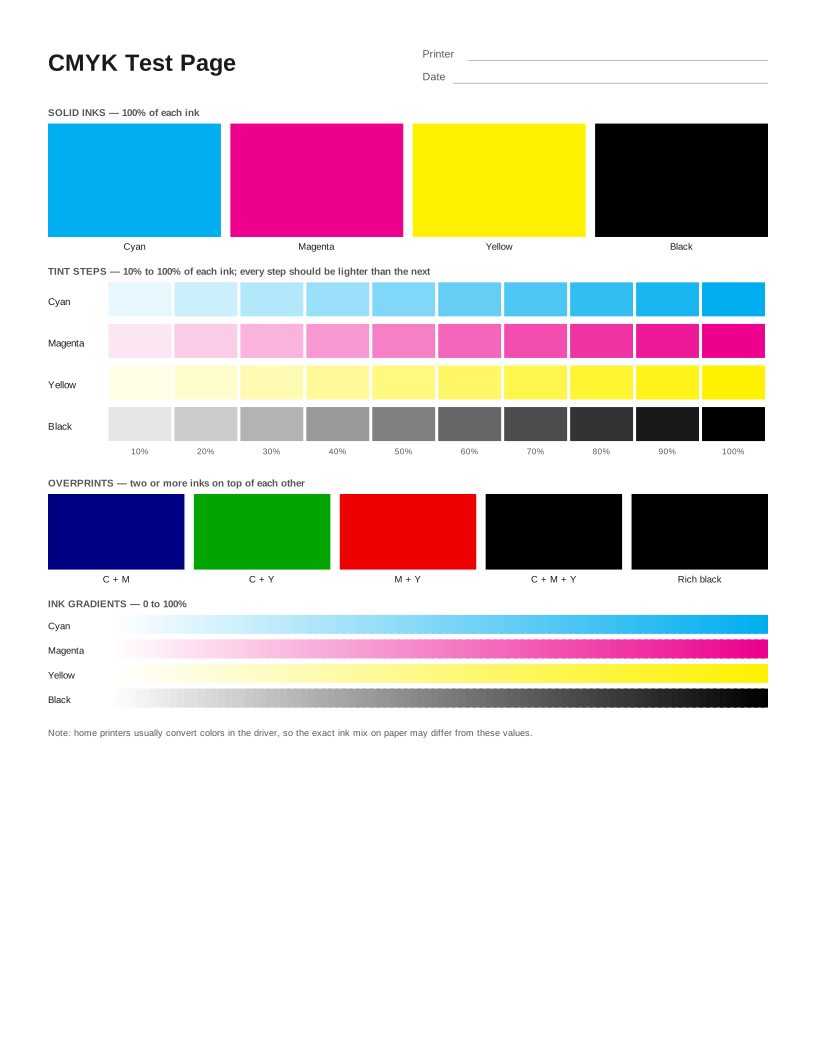 CMYK Test Page
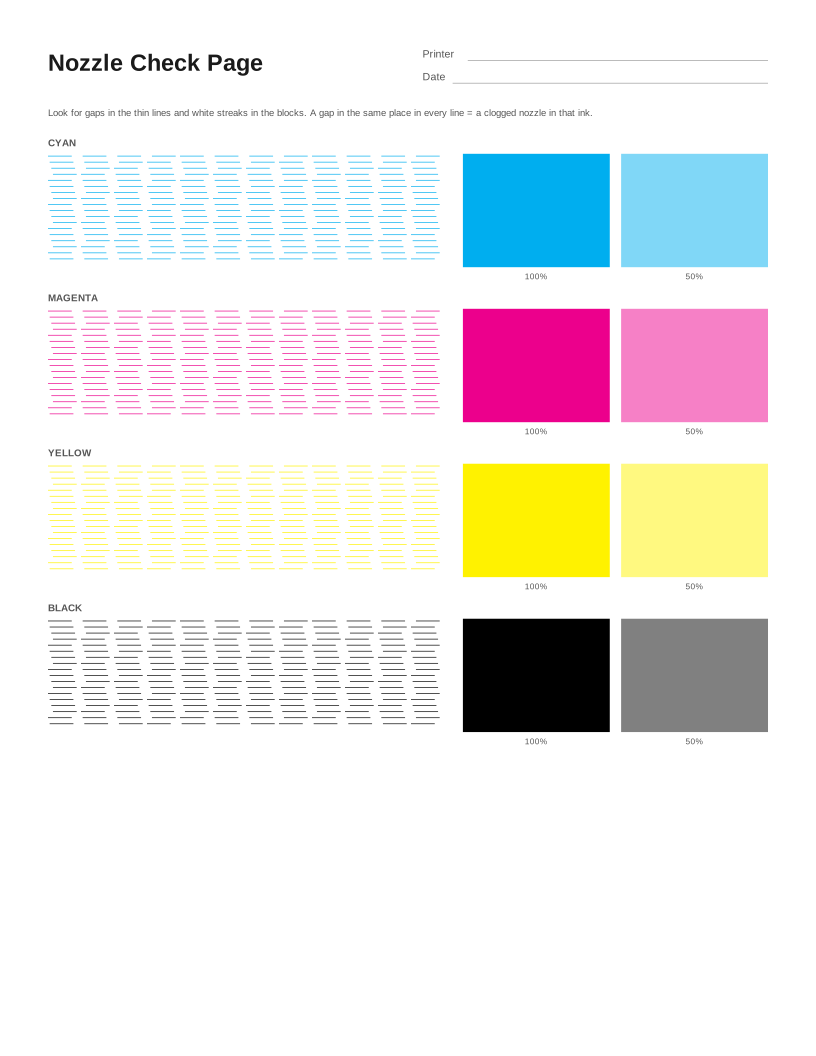 Nozzle Check Page
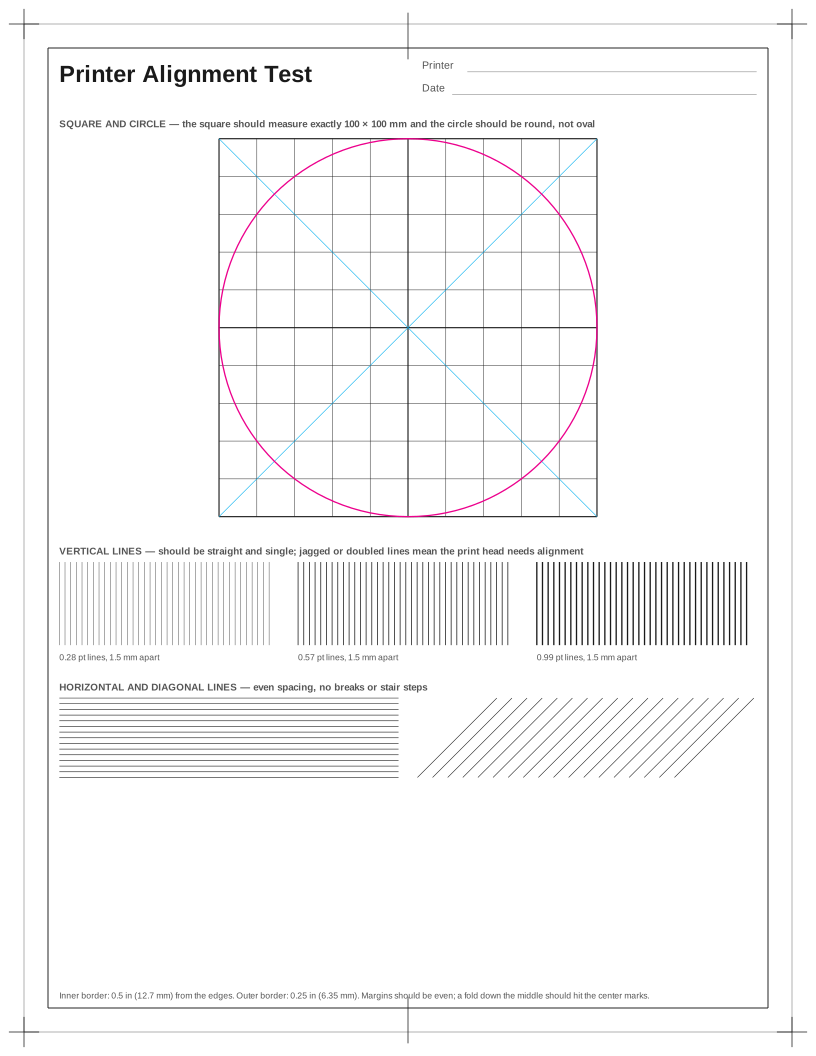 Printer Alignment Test Page
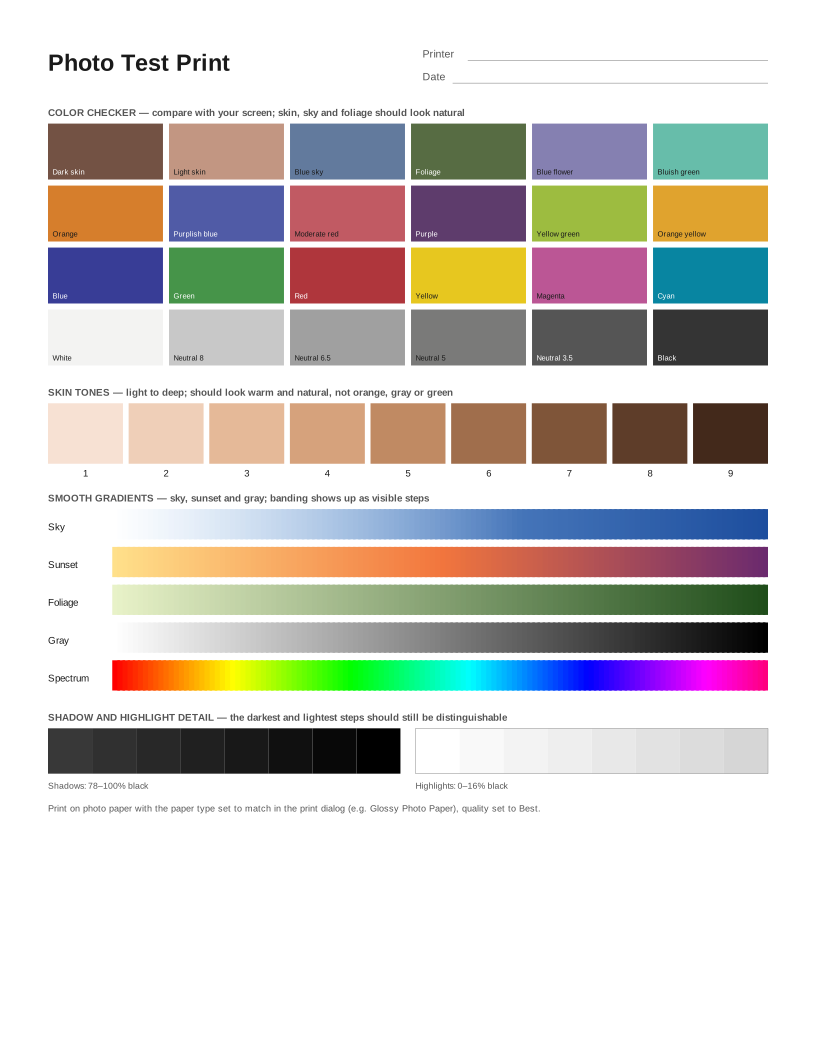 Photo Test Print
 HP Printer Test Page
 Epson Printer Test Page
 Canon Printer Test Page
 Brother Printer Test Page
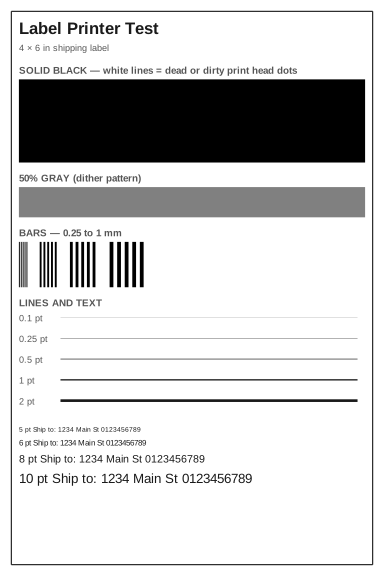 Label Printer Test Page
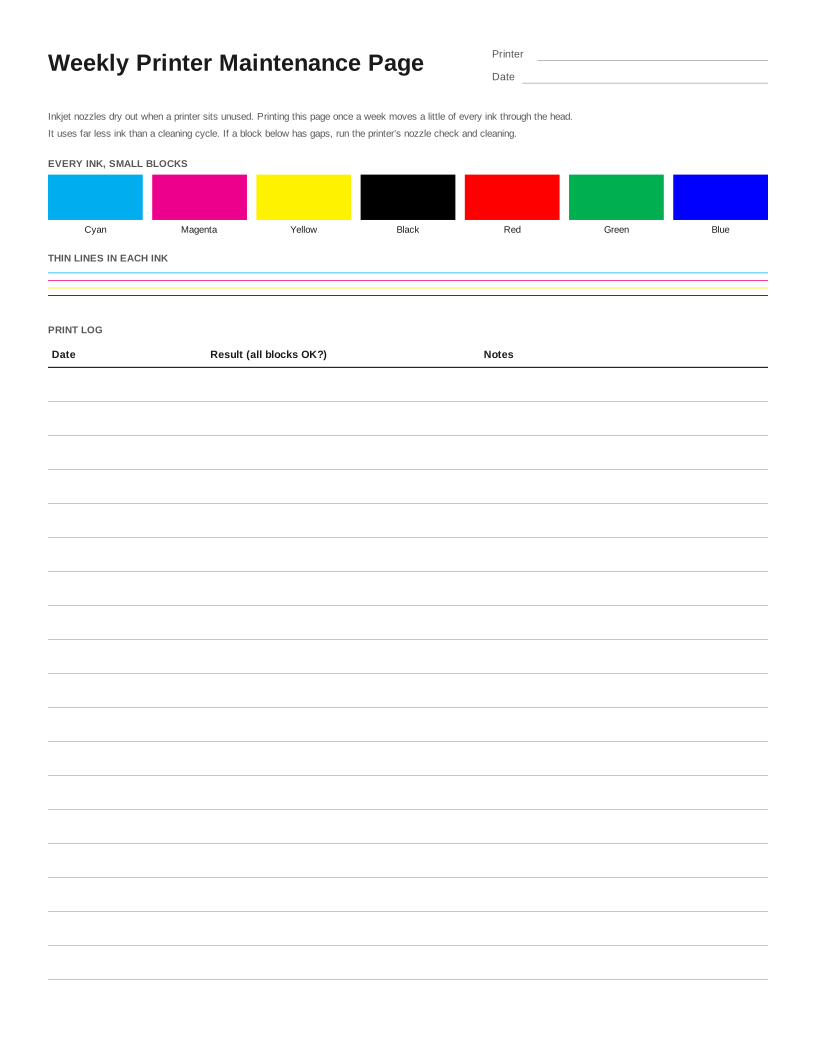 Weekly Inkjet Maintenance Page
Frequently asked questions
How do I print at actual size?
In the print dialog, set Scale to 100% or choose “Actual size”, and turn off “Fit to page”, “Shrink oversized pages” or “Fit to printable area”. In Chrome and Edge, open More settings → Scale → Custom 100.
Why is my printout slightly smaller than it should be?
“Fit to page” is on, or the paper size in the dialog does not match the paper (A4 printed on Letter or the other way round). Both shrink the page by a few percent.
What if it is still off at 100%?
A difference of under 1% can come from the paper feed. Measure over the longest ruler to be sure. If the error is always the same, some apps let you print at, say, 101% to compensate.